
[Shopify] Payment Integrations
Our most popular payment gateways in Shopify include Shopify Payments, Stripe, Authorize.Net CIM, and PayPal Express Checkout which are pre-configured to work with Autoship Cloud, but do need to be setup and tested.
See supported payment integrations below:
- Shopify Payments
- Authorize.Net CIM Payments
- PayPal Express
- Stripe
Setting up and testing Payments
- To test this feature, you must first connect and register your test or staging site with your online Merchant Site by setting up the Autoship Cloud app.
- Log in to your QPilot Merchant Center, select your site dashboard, and then “Payment Integrations”
- Click the add button (displayed as “ + “ )
If you have Shopify payments activated on your site, add a Shopify payment integration (no keys are required). Once created select "Update".
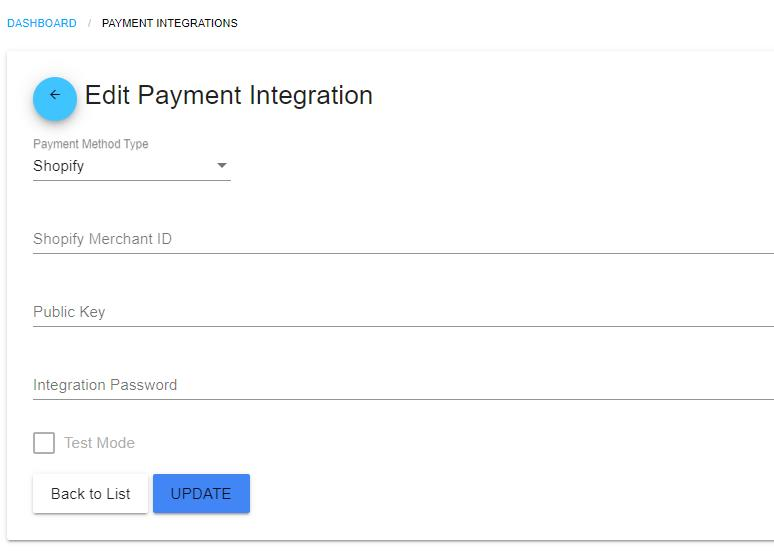
Shopify Payments Intergration If you use another supported payment integration please repeat step 3 and select your Payment Gateway (of the supported payment integrations above).
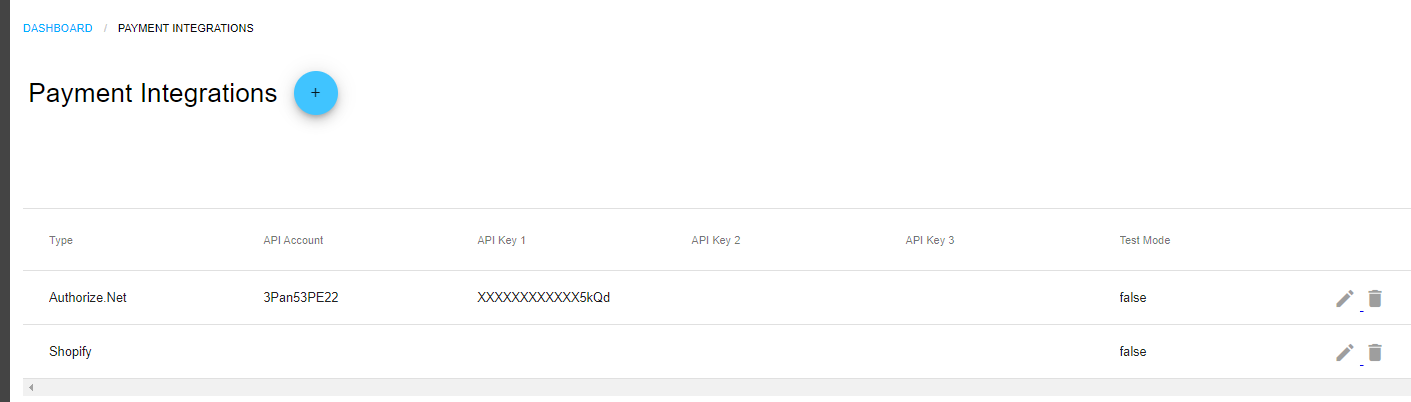
Multiple Payment Intergrations for Shopify - After setting up your payment gateway(s), visit your Shopify store as a customer and complete a checkout with 1 or more products scheduled for a future order.
- Visit the “Scheduled Orders” page within My Account as a customer to confirm that the payment method used at checkout is displayed on each Scheduled Order.
- You can also verify as a merchant by going to Shopify > Orders, Edit > View Subscription and verify the payment method is successfully added to the Scheduled Order as well.
What If I Have Multiple Payment Integrations?
If you have more than 1 payment gateway enabled on your site, you will need to add a payment integration for each one!
Note! If you have activated PayPal on your Shopify site, you can only have one other credit card processor activated.