
How B2B Subscription Orders Process
- where to find Scheduled Orders and how a record is laid out
- what happens on each renewal
- validation: whether the next order can process
- notes and custom names
- the event log and cycles history, for when an account asks "what happened?"
To change, pause or cancel a subscription, see How your team manages B2B subscriptions.
Where to find Scheduled Orders

Subscription orders are tagged in Shopify
- B2B Subscription First Order: the order where the subscription was first purchased.
- Autoship B2B Subscription Order: a subscription renewal order.

The Scheduled Orders list shows what renews next
- Sort by Next Occurrence to see what renews soonest.
- A green check under Validation means the next order can process.
- Open Filters to search by order, customer or email, or to filter by Status and Next Occurrence date.
The record names the account and its terms
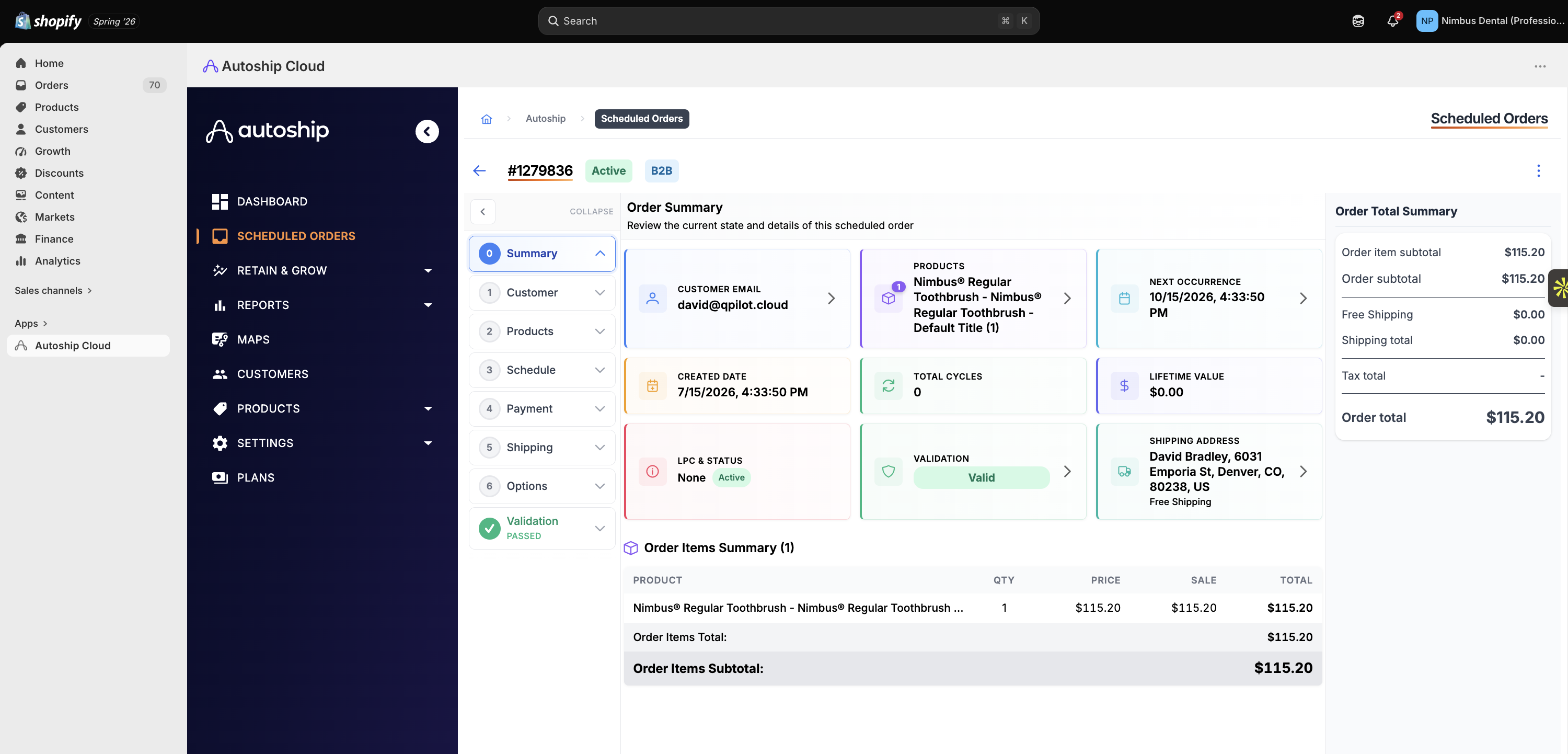
What happens on each renewal
Every renewal runs the same five steps
- Checks status and validation. A Paused subscription, or one that fails a check, doesn't process.
- Creates a Shopify order for the company location, tagged Autoship B2B Subscription Order.
- Prices it from the location's catalog. Each item gets the price Shopify shows for that location at that moment. Catalog prices are not grandfathered: if the catalog price changed since the last order, the renewal uses the new price. Any Autoship discount from the subscription's frequency option is applied on top.
- Collects payment. A payment method saved to the location is charged when automatic collection is on in Settings → Payment Collection. If the location has payment terms, the order is created on those terms. For the full rules, including what happens when a charge fails, see How Autoship handles payments.
- Moves the next occurrence date forward by the frequency.
⚠️ Shipping is the exception. The shipping rate is locked on the Scheduled Order's Shipping step. Changing rates in Shopify doesn't change upcoming renewals.
Each value comes from one level: shop, product, company, location
|
Level
|
What is set here
|
What a renewal takes from it
|
|
Shop
|
Your B2B default frequency options, payment collection and shipping rates
|
The defaults each product starts with
|
|
Product
|
Autoship options (a frequency and its discount)
|
The options offered wherever the product is sold
|
|
Company
|
Options of its own, only if this account should differ
|
Inherited by its locations
|
|
Company location
|
Its catalog, payment terms, saved payment methods, and options of its own if needed
|
Price, terms and payment method
|
|
Scheduled Order
|
Products, quantities, next date, shipping, and which of the available options and payment methods it uses
|
Everything else
|
- Options are set on products. Companies and locations inherit them through the catalogs those products are in. You only set options on a company or location when that account should be offered something different.
- The company location is the lowest level a unique frequency can be set on. You can't give one individual subscriber a frequency of their own. Set it on their location.
Validation tells you whether the next order will process

|
Check
|
What it means
|
How to fix it
|
|
Payment Method set
|
A payment method is selected
|
Pick one on the Payment step, or set payment terms on the company location in Shopify
|
|
Payment Integration set
|
The payment method is connected to a working payment gateway
|
[PENDING: merchant-facing fix]
|
|
Contains items
|
At least one product is on the order
|
Add a product on the Products step
|
|
Items are valid
|
Every product still exists and can be ordered
|
Remove or replace unavailable items on the Products step
|
|
Shipping Rate set
|
A shipping rate is locked to the order
|
Choose a rate on the Shipping step
|
When all checks pass you'll see 5/5 Passed. If any check fails, the order doesn't process on its next date, and the Scheduled Order is flagged until it's fixed. It will process again when it's time to process to avoid a "failure" status if possible. For instance, a product that was out of stock between frequency events might come back into stock before the upcoming frequency processing.
Subscribers can change an order until its change-by date
Notes and Custom names and notes keep your team oriented

- Custom Name: for your team only. Useful when an account has several Scheduled Orders (for example "Main warehouse — gloves").
- Note: context about the order, such as "PO 4471 covers this order through March". Depending on your site settings, buyers may see it. If you want the customer to change notes on a scheduled order this can be turned on in Settings> General > Customer Portal.


Event log and cycles history
- Open the Scheduled Order.
- Click the three-dot menu (⋮) at the top right.
- Choose View Event Logs.

The event log does not specify who made a change - only that a change happened.
To see every order a Scheduled Order has created, choose View Cycles History from the same menu
