How Buyers Manage Subscriptions
How to find your scheduled orders
- Sign in to your supplier's wholesale store.
- Go to My Account, then My Subscriptions.
- You'll see each scheduled order with the date it will process next, how many items it has, and where it ships.
- Click an order to see the details or make a change.
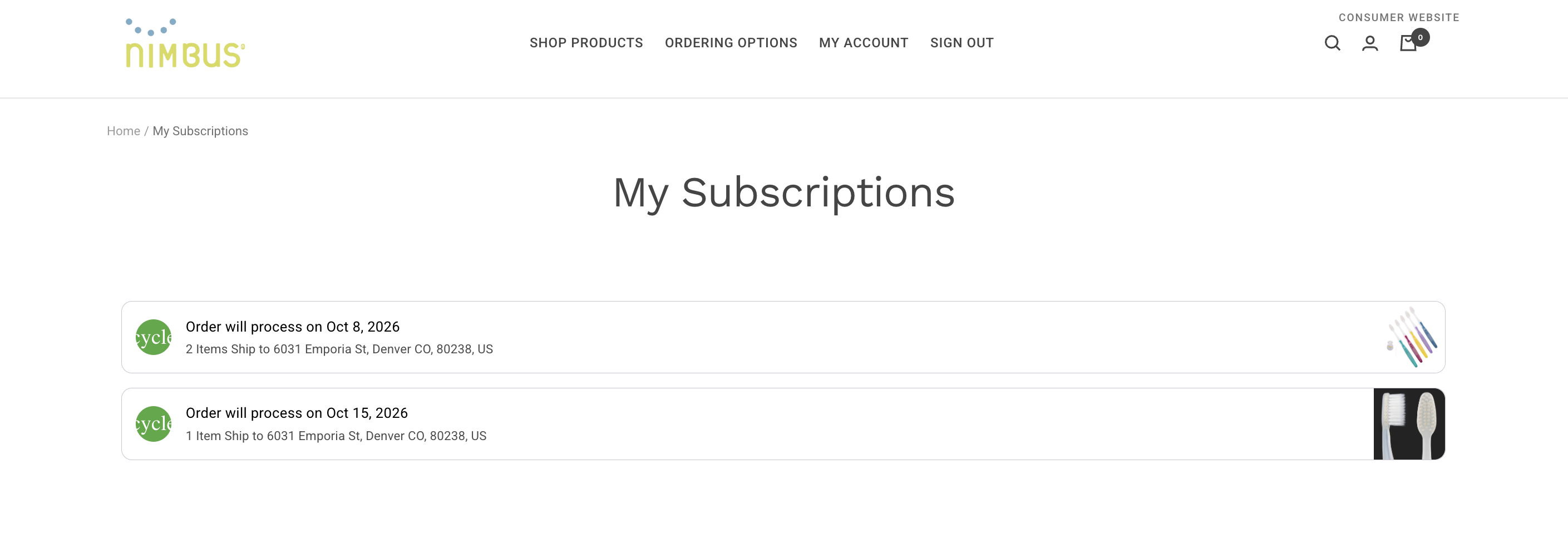
If there is only one location the buyer is assigned to, the subscription list may look like the above image. If the buyer is assigned to multiple locations, their subscriptions are separated by location and a location toggle will appear:

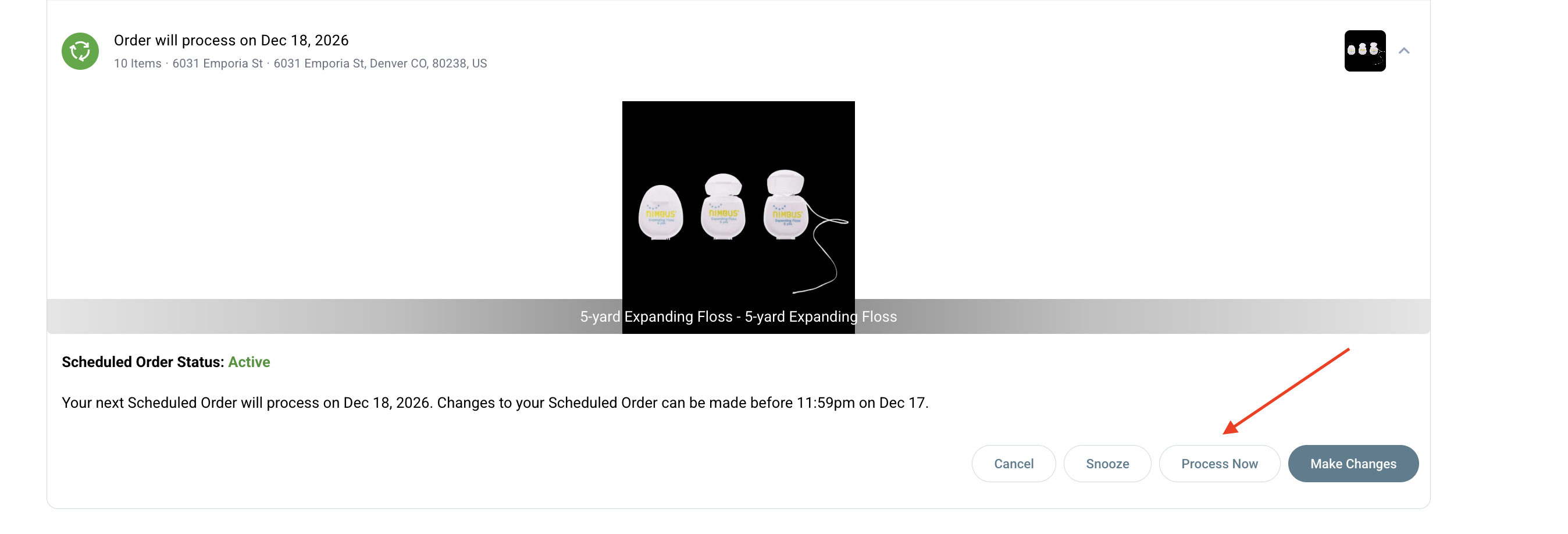
A buyer can edit any subscription that is not in the "processing" status. See above for an example of what that looks like for a buyer. Buyer's may ask the following questions when they want to make a change:
-
Can I have it now? Later?
-
Need it now? Click Process Now to place the order today. (If you don't see this button, your supplier has turned it off.)
-
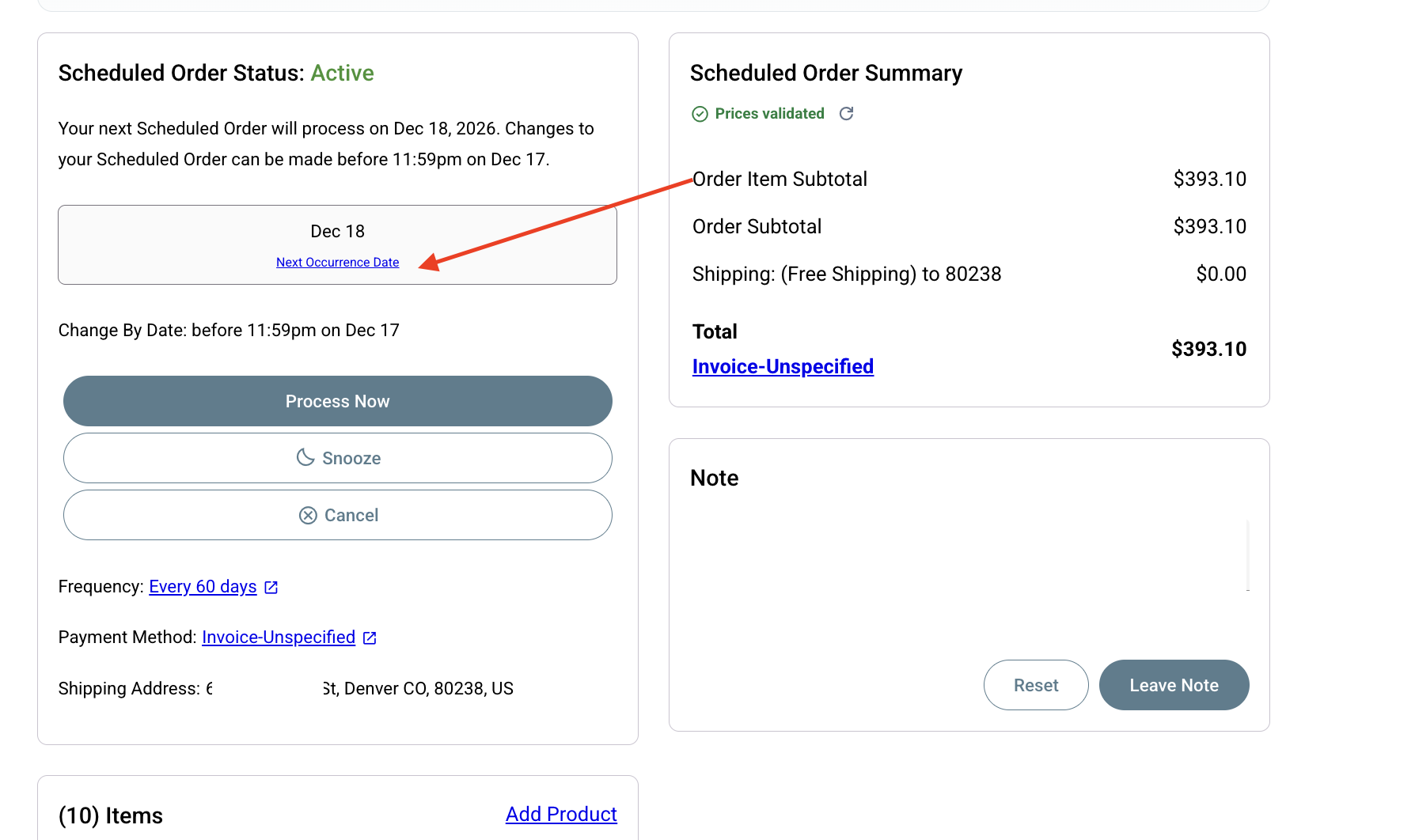
Need it on a different date? Click Reschedule or Next Occurence Date on your subsciption detail view (what is shown after customer selects "Make changes" button above) and pick a new date. Your later orders follow from the new date.
-
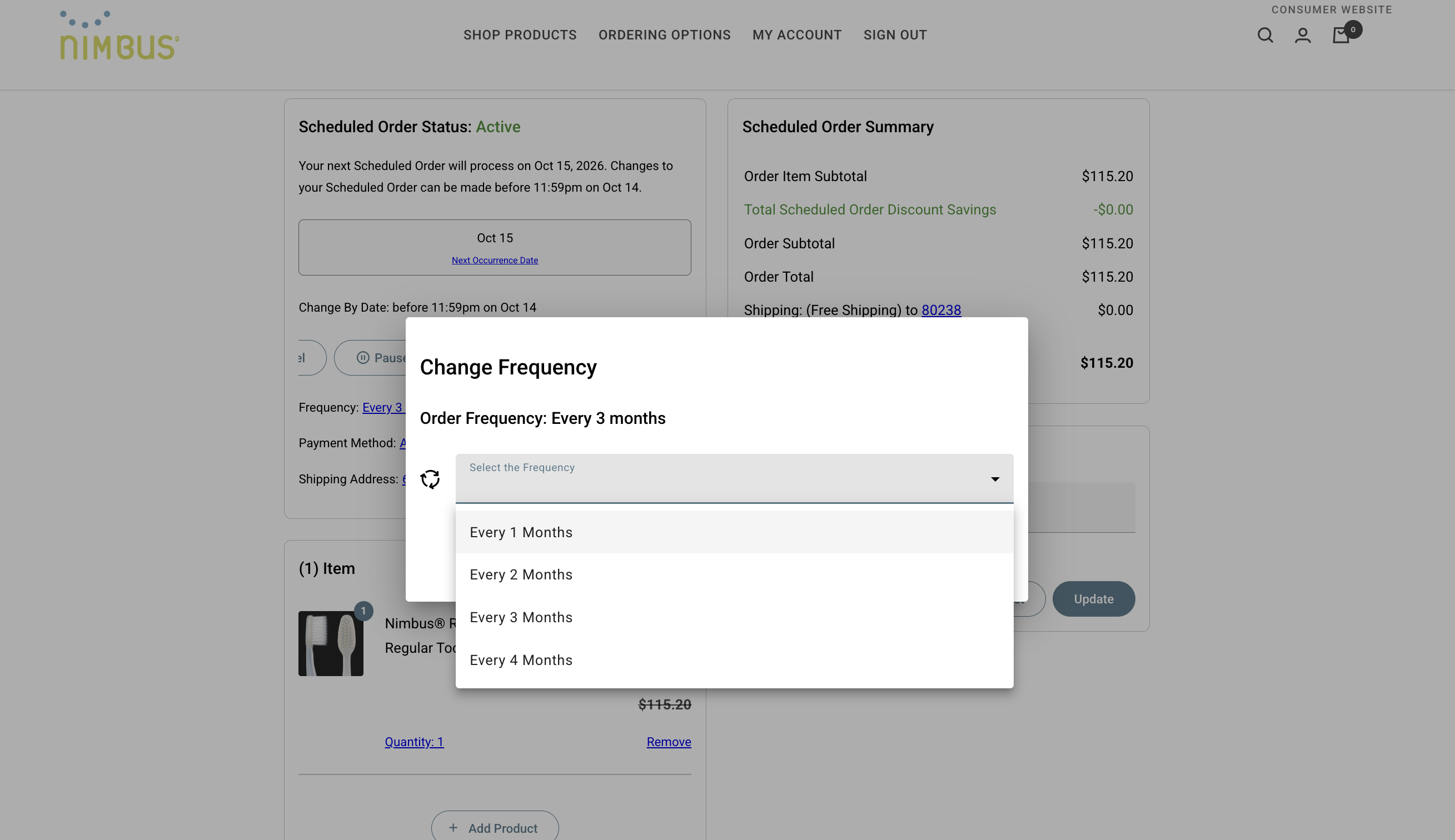
- Can I have it on a different Frequency?
-
Need it on a cadence? From the detailed subscription view, on the left hand side under "Next Occurence Date" is the Frequency settings. The frequency hyperlink opens a pop-up that has all available frequency options for a buyer to choose from.
-
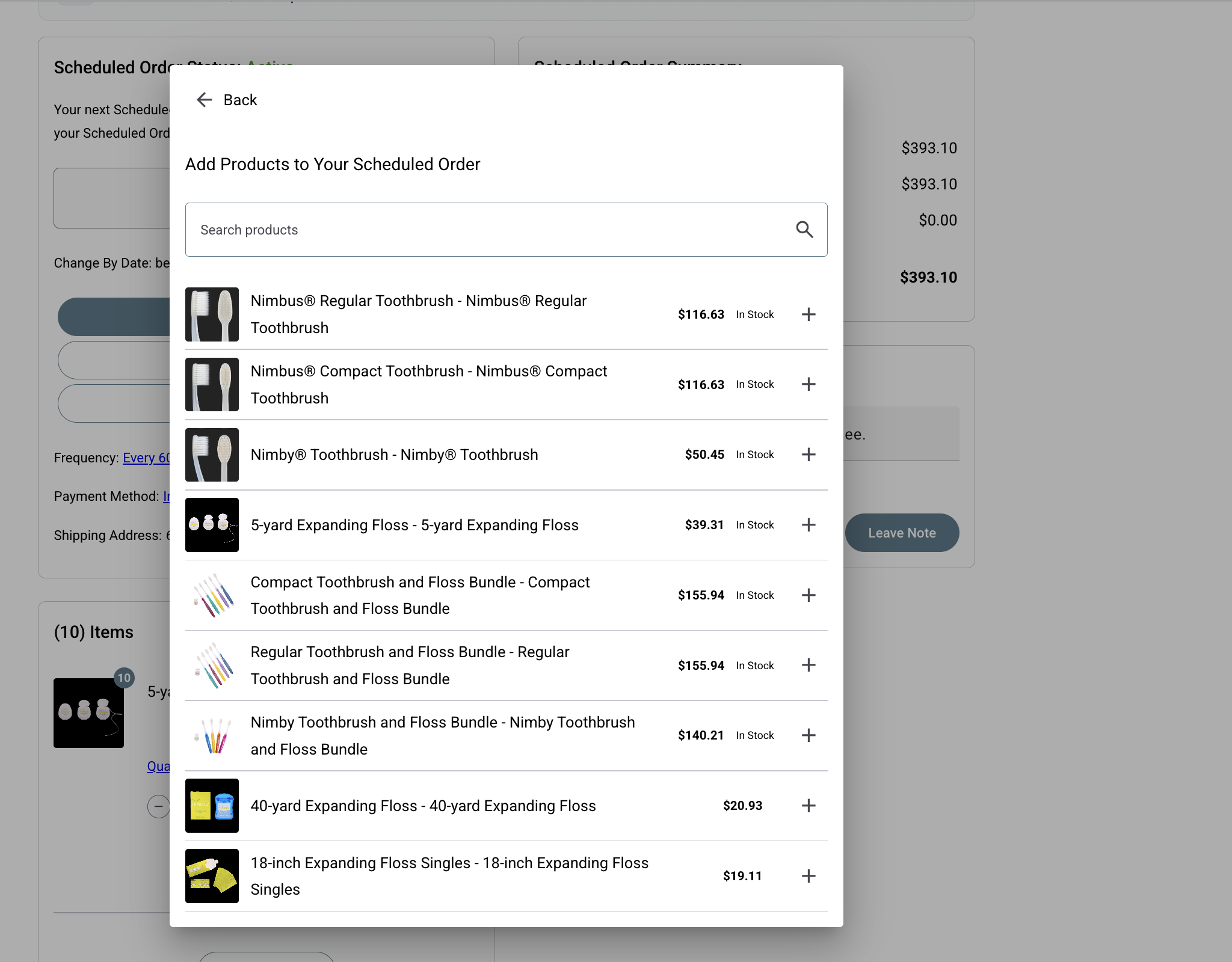
- Can I add or change the products in my subscription?
-
I want to add items, how to do this? Add: click Add Product, search, and add the item. Only products available to the buyer's catalog will be visible in the search results under Item card. The buyer will click the + button to add the item and can then adjust quantities after it's been added to the subscription.
-
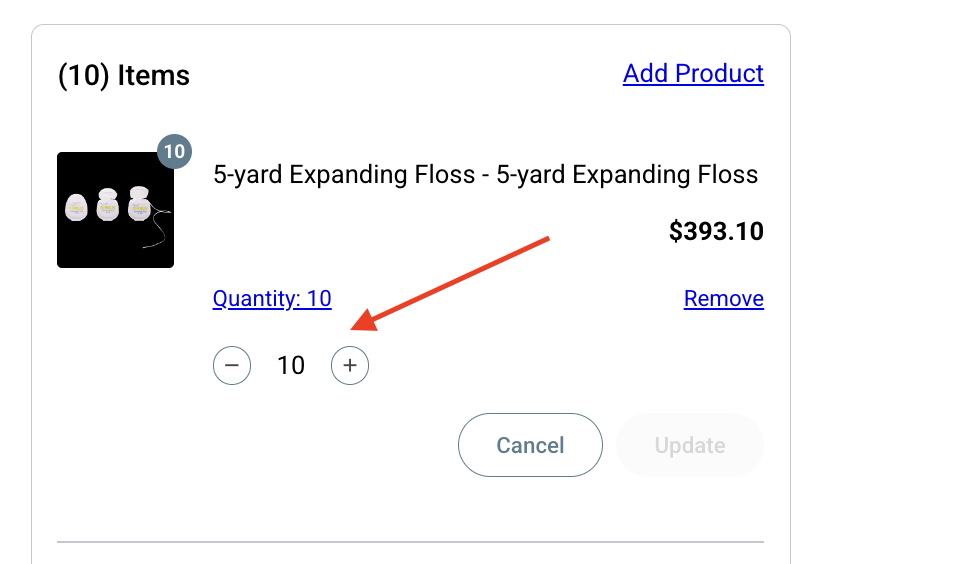
How do I change the quantities? Click: Quantity under the Item Title and +/- buttons will appear to edit quantity:
-
-
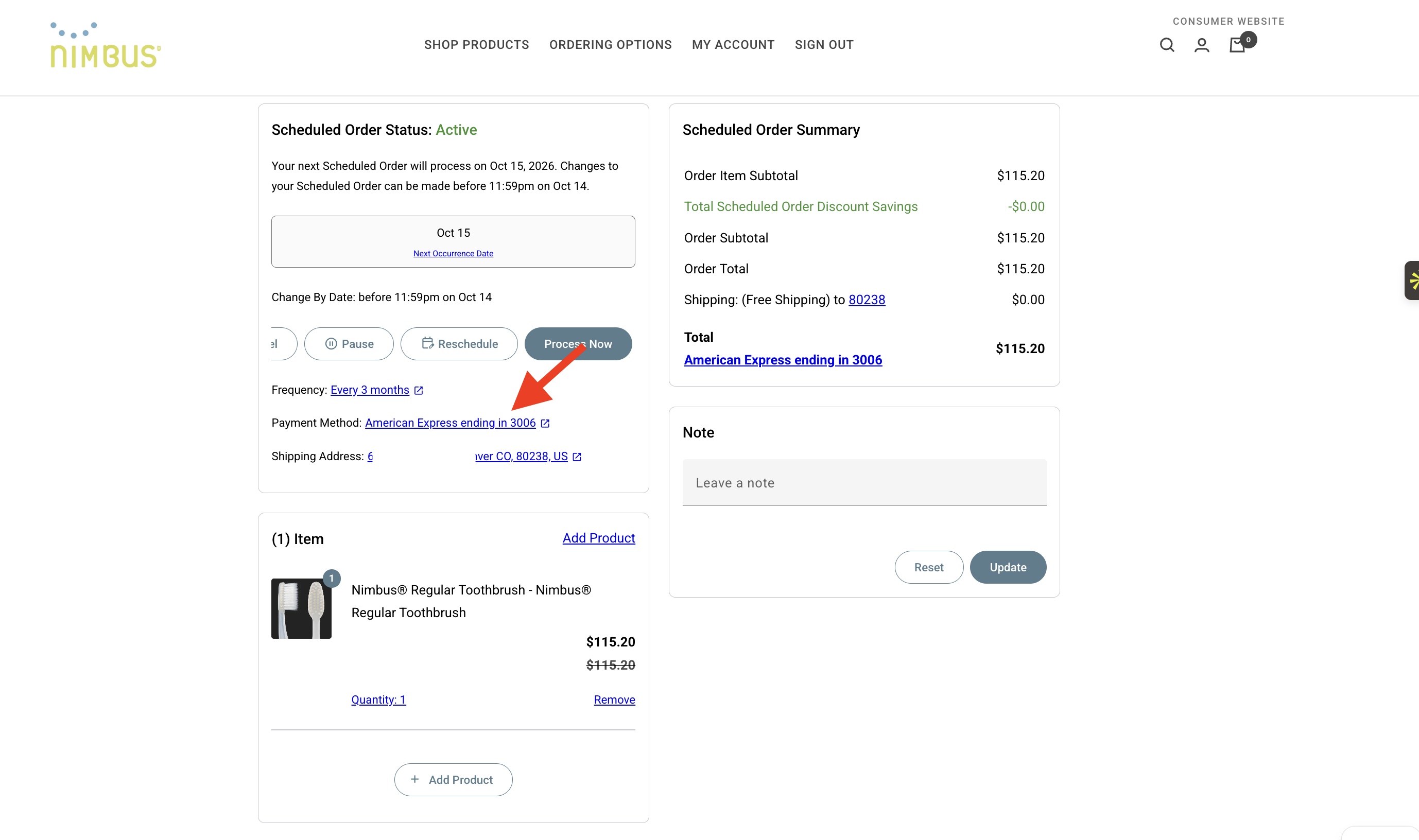
How do I change my payment method? Buyers are tied to their payment terms and payment methods via their location setup. To change which credit card is used they would add a credit card to their Shopify profile first. When logging into their profile, they must first choose a location. From that location, they can navigate to Profile payment methods and click "add" button.
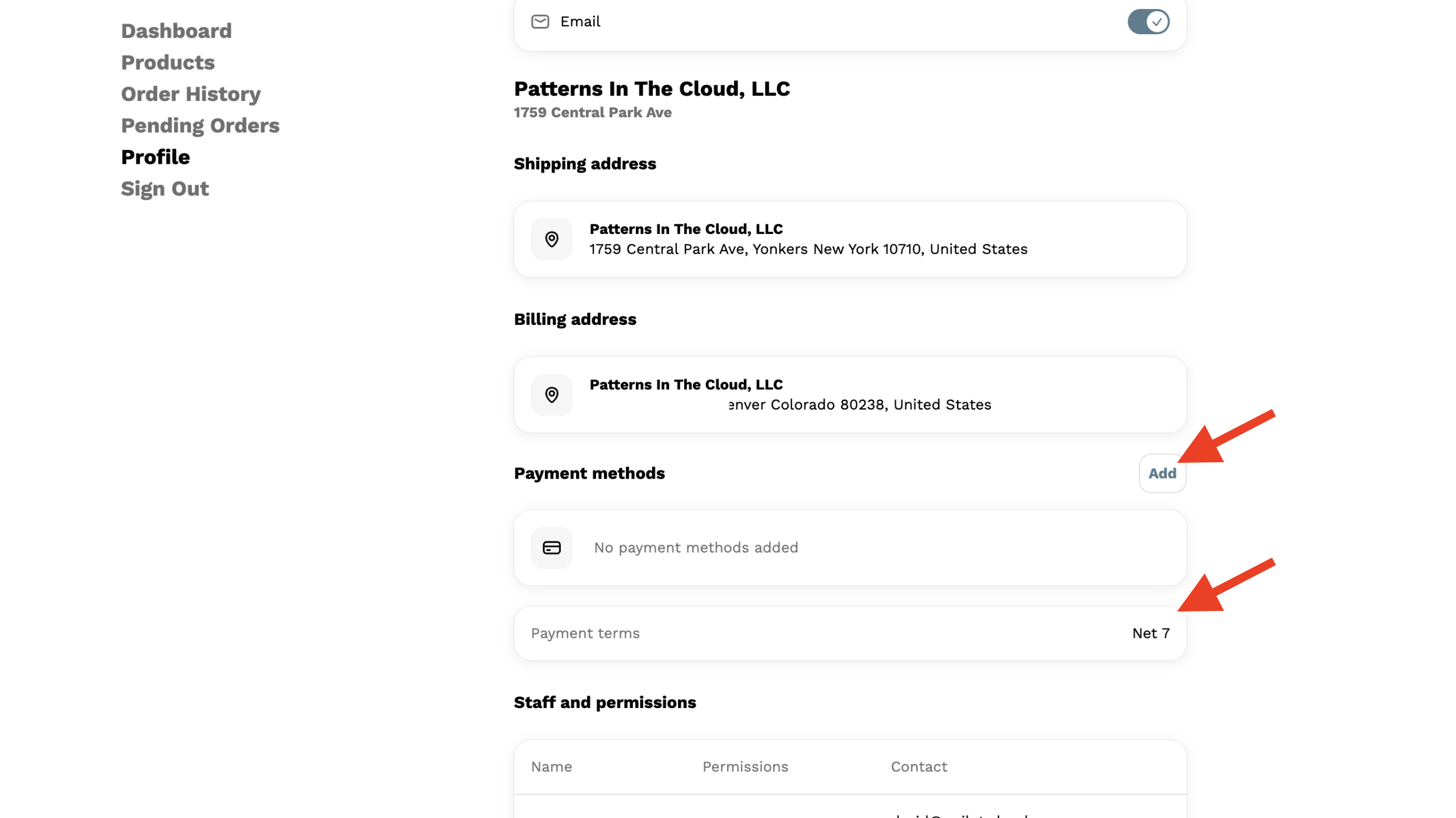
Once a credit card has been added to the profile, it will be selectable from the subscription. Terms are set on the location in Shopify Admin and can't be changed by the customer.
-
How do I change my shipping address? Buyers can not change their shipping address. The location is tied to the Company profile that a buyer is assigned to. If a Company moves, you can update their location from the Company Customer profile in Shopify.
-
How do I Pause or Resume my subscription that is already Paused?
A customer can Pause or they can Snooze. What they see will depend on the Portal Settings you've set up in Autoship. It's one or the other between Snooze and Pause. The difference is that Snooze auto-resume and Pause requires the subscriber to select to resume.
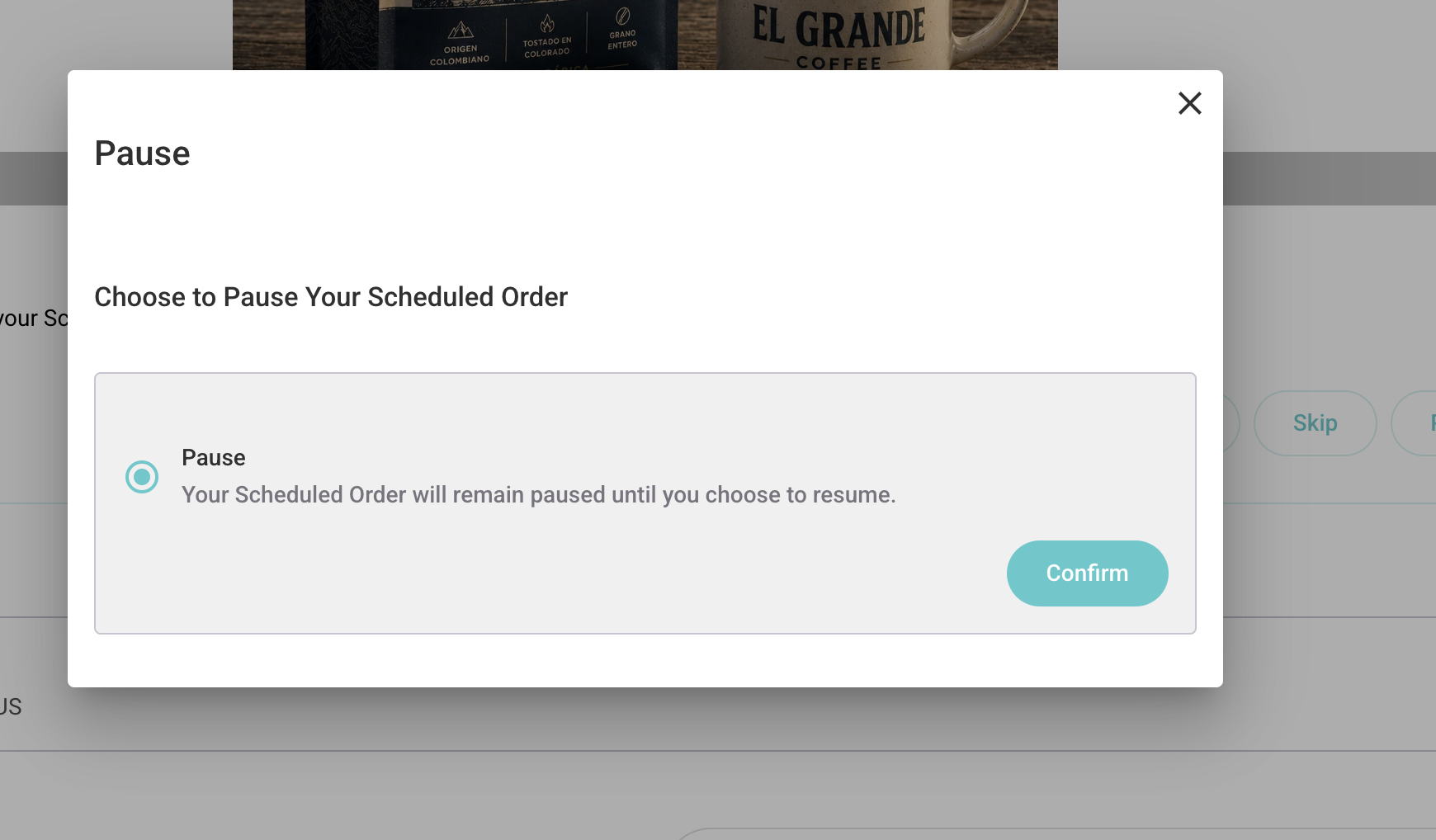
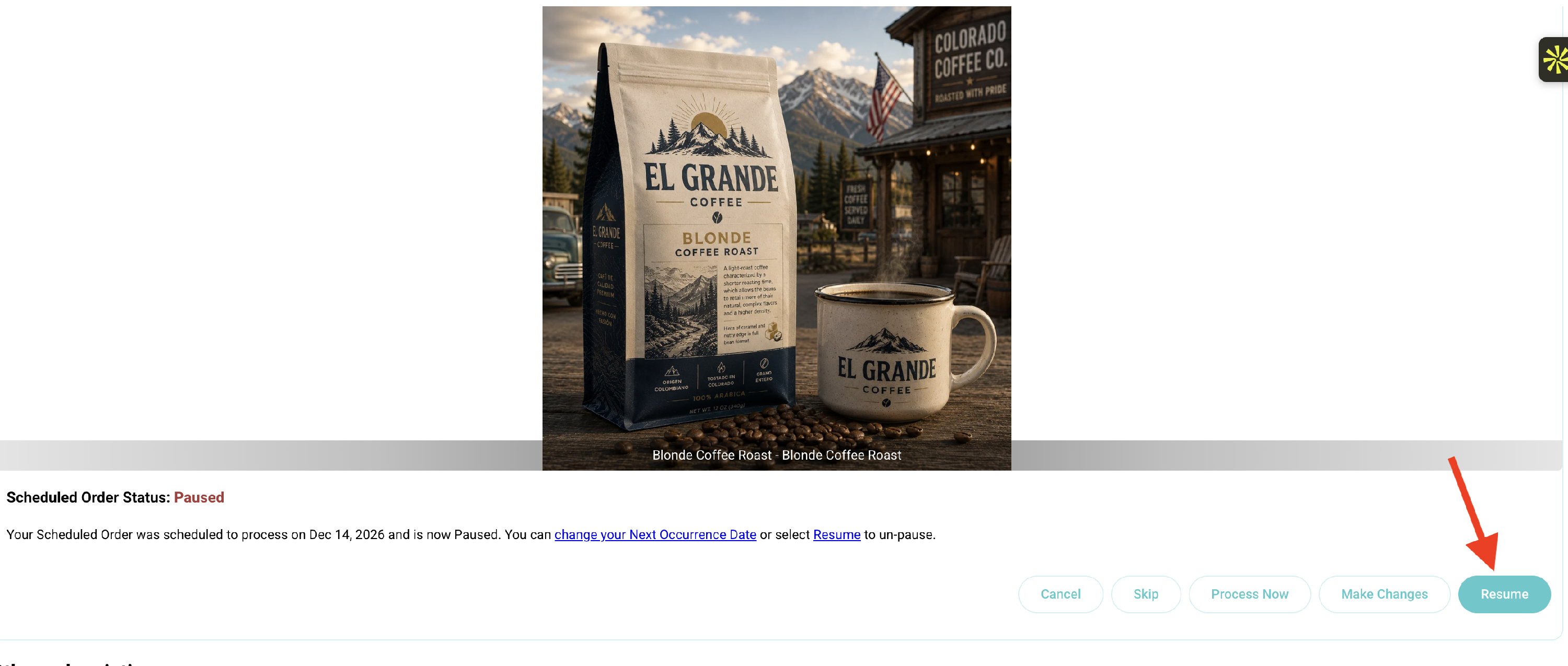
If Pause is selected for your customer's their button's will include a Pause button and once selected a Resume button. See example confirmation that asks a customer to confirm their desire to Pause:
If you business has opted for an auto-resume via Snooze the customer sees a "Snooze button" and confirmation looks like:

The customer can resume at any time by selecting Resume from their Snooze subscriptions. The portal will have a different icon for Snoozed subscriptions.

-
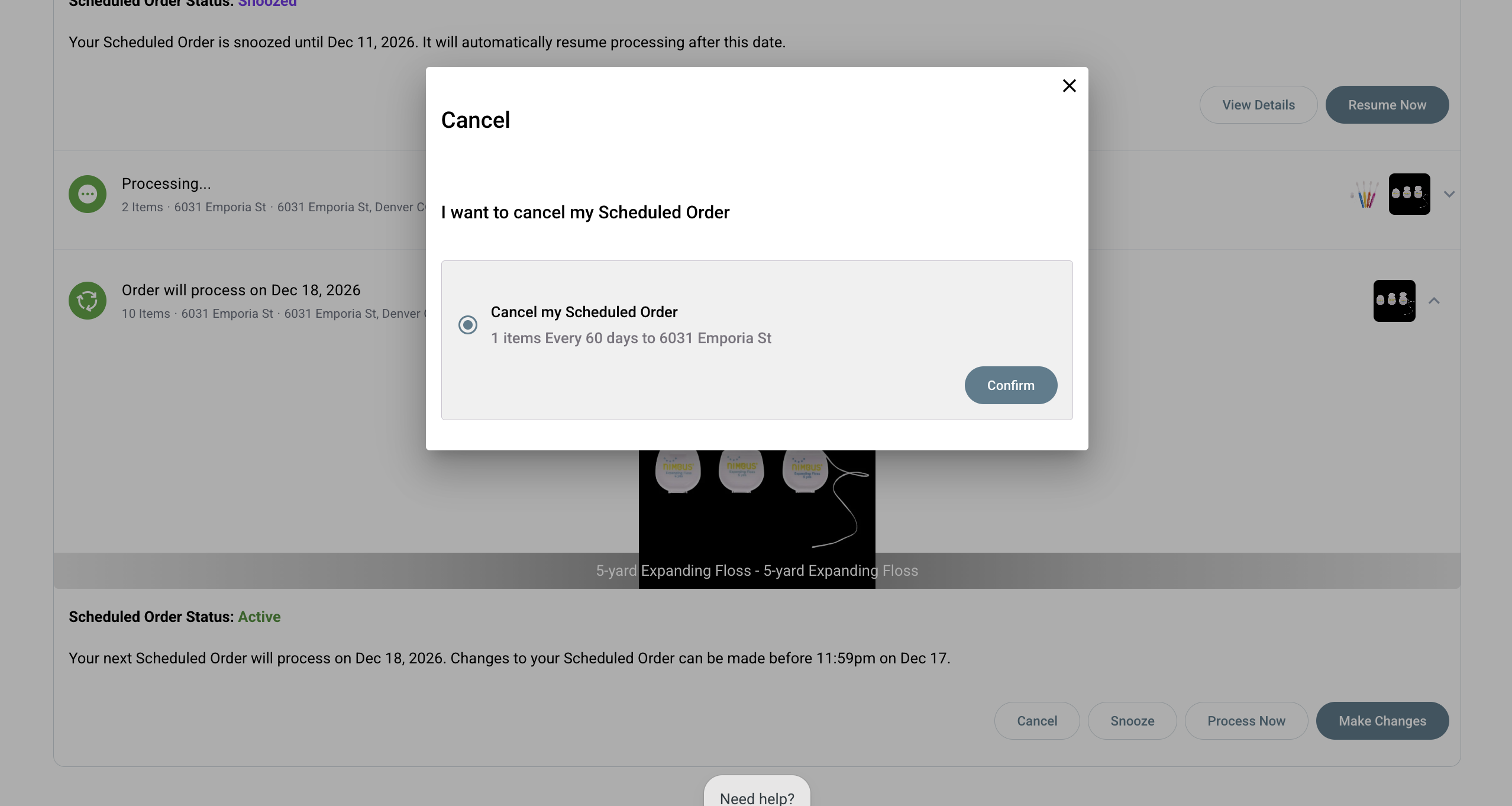
Lastly a buyer may need to cancel their subscription if they no longer want to sell or use the item for manufacturing: