
Quick Action Links
How to create a Quick Action Link
A Quick Action Link performs one action on one subscriber's Scheduled Order the moment they click it — no login, no portal, no support ticket. You create the link in the QMC, then add it to an email, where it carries the subscriber's Scheduled Order ID so it only ever affects their own subscription.
The three examples below show how to create a link and how to use it.
Win back a cancellation
One click and a cancelled subscriber is subscribing again, instead of re-entering a card and rebuilding their order.
Create the link
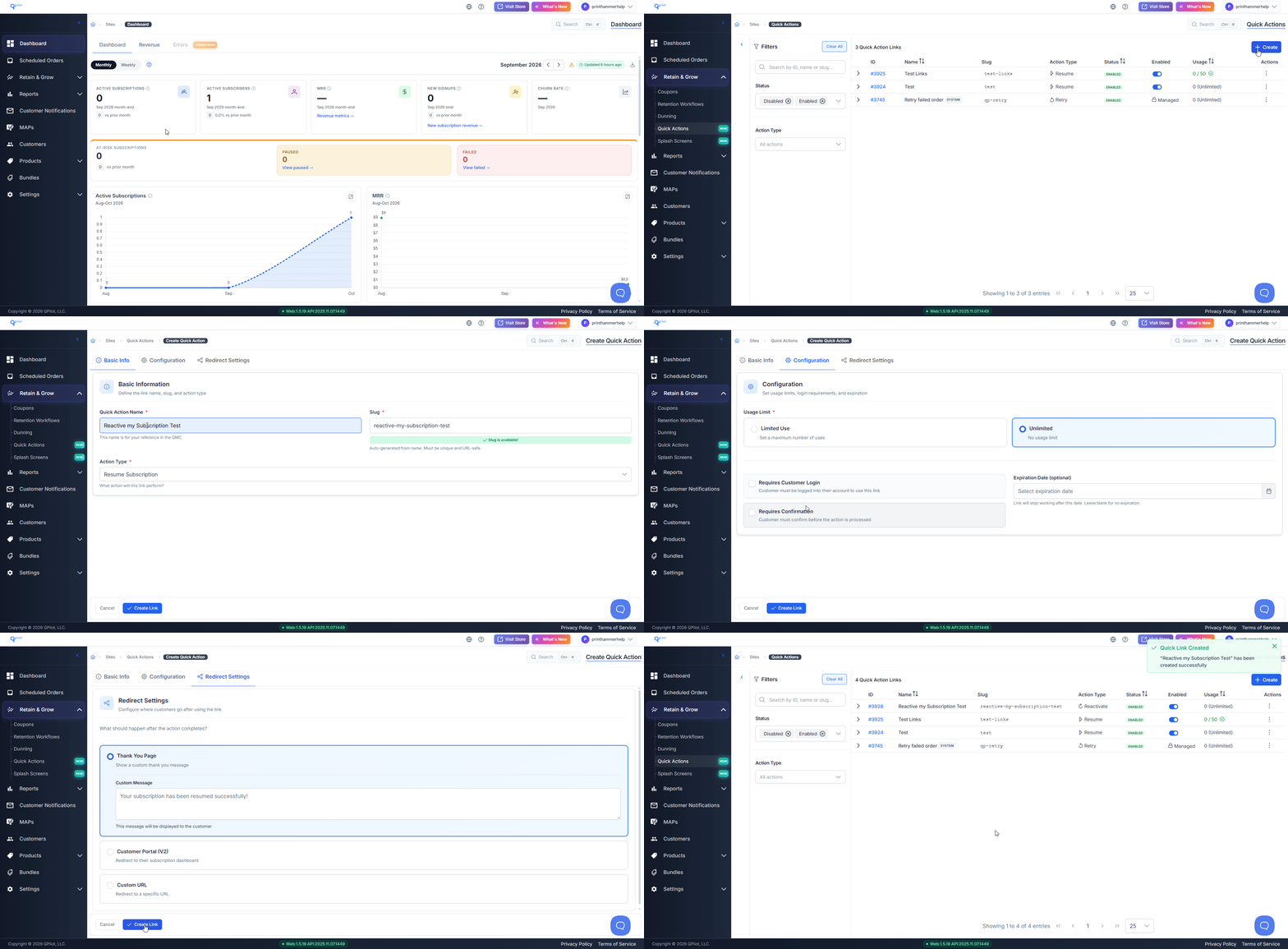
From the QPilot Merchant Center > Click 'Retain & Grow' > Click 'Quick Actions' > Click '+ Create' in the top right
Enter a Quick Action Name > The Slug fills in automatically > Set Action Type to 'Reactivate Canceled Subscription'
Click 'Configuration' > Leave Usage Limit on 'Unlimited' > Tick 'Requires Confirmation'
Click 'Redirect Settings' > Select 'Thank You Page' and enter your message, or choose 'Customer Portal (V2)' or 'Custom URL' > Click 'Create Link'
The Quick Action Name is for your reference in the QMC and is never shown to subscribers.
Important: the slug cannot be changed after the link is created.
With Requires Confirmation ticked, the link only works when clicked from an email. Pasting the URL into a browser directly is blocked — this stops email scanners from firing the action before your subscriber sees it.
Add it to your email
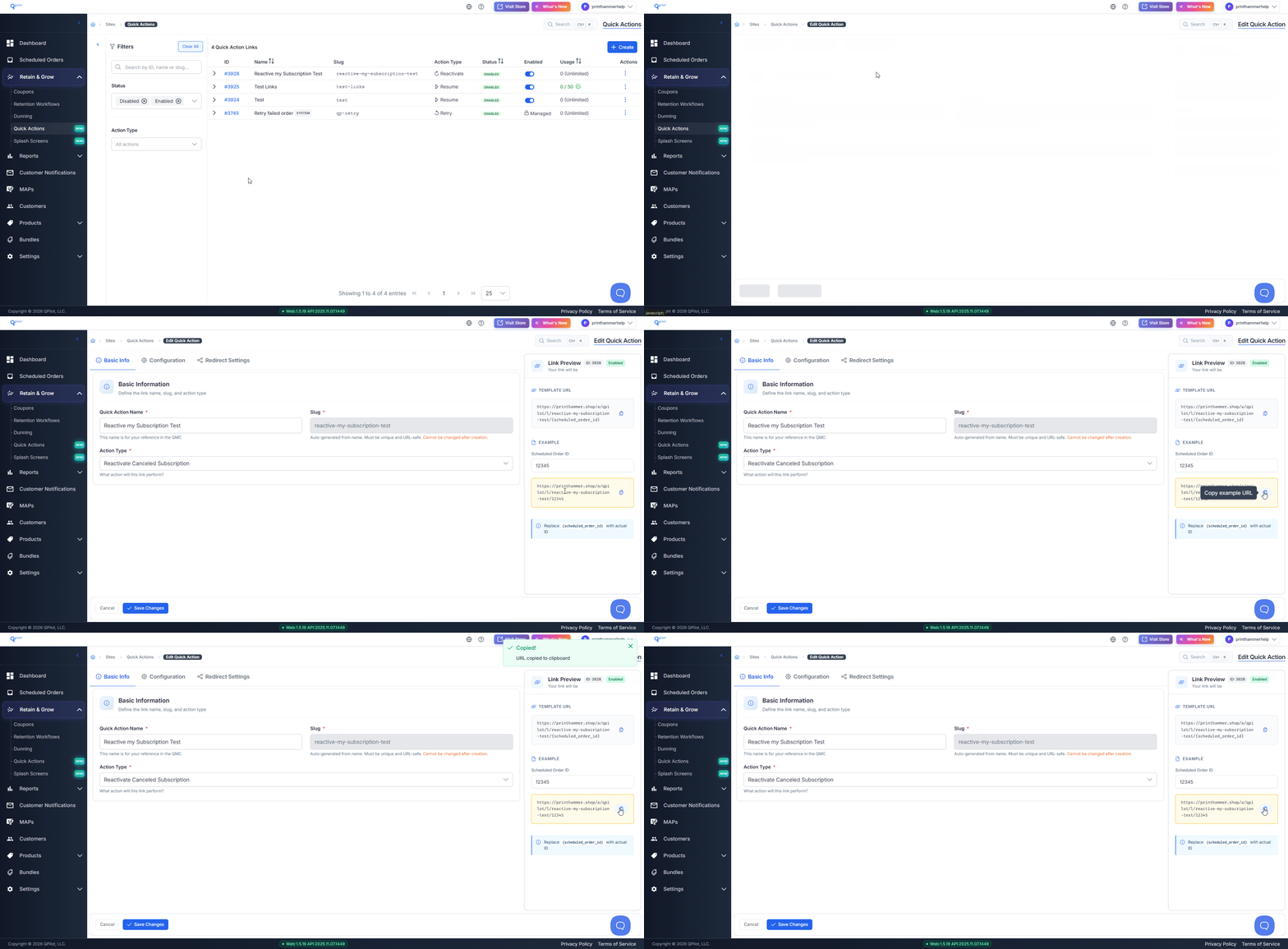
From the Quick Actions list > Click your link > Find the Link Preview panel on the right > Click the copy button next to the Template URL
The URL ends in {scheduled_order_id} . Replace that with the Scheduled Order ID merge field from your email platform so each subscriber gets a link to their own subscription.
What the subscriber sees
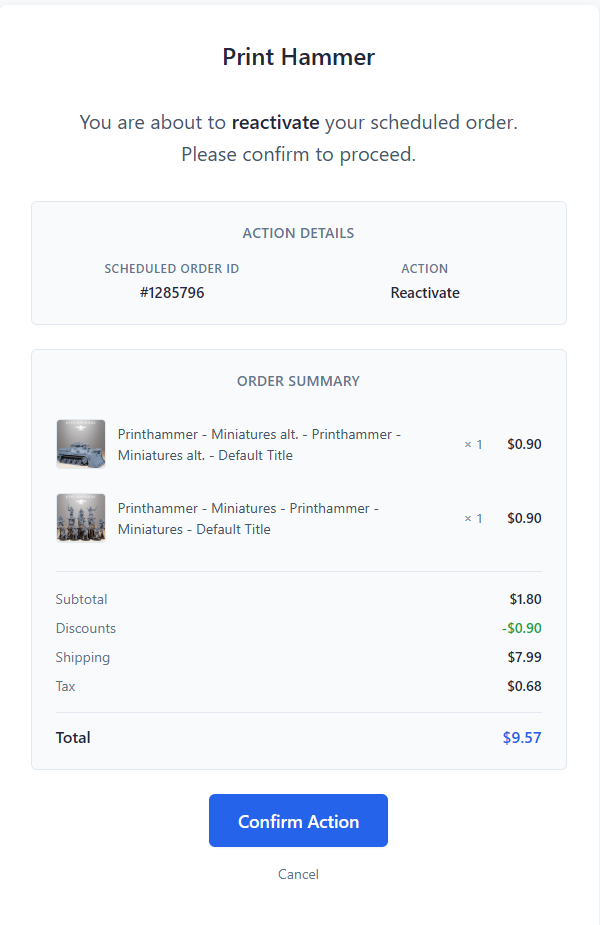
Clicking the link opens a confirmation page showing the Scheduled Order ID, the action, and a full summary of the items and totals.
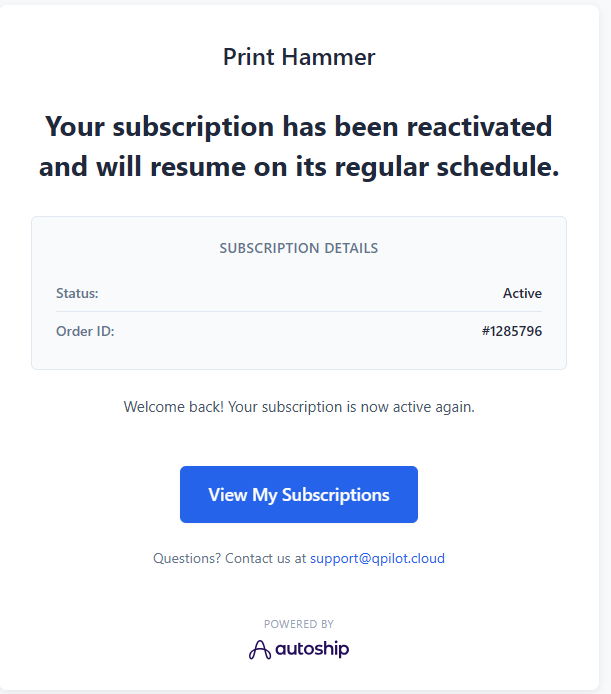
After confirming, the subscription is Active again with its original items and payment method, and they see your Thank You message.
Important: this link reactivates a Scheduled Order as it was left. If a subscriber removed the items or the payment method before cancelling, reactivating will not restore them and the Scheduled Order will fail to process.
Recover a paused subscription
Restart a paused subscription in one click, without the subscriber logging in to find the right screen.
Create the link the same way, with Action Type set to 'Resume'. For Redirect Settings, 'Customer Portal (V2)' works well here so the subscriber can check their next delivery date.
Process an order after a failed payment
Charge an order straight away once a subscriber has updated their payment method, instead of waiting for the next retry.
Create the link the same way, with Action Type set to 'Process Now'. Set an Expiration Date a few days out so the link stops working once the retry window has passed.
Important: this link charges the subscriber. Send it after they have updated their payment method.
Managing your links
The Quick Actions list shows each link's ID, name, slug, action type, status and usage. Use the Enabled toggle to turn a link on or off, and the Actions menu to edit or delete it.
You will also see a Retry failed order link marked SYSTEM. This one is created and managed by QPilot and cannot be edited or deleted.