
Beyond 10% Off: Grow Your Subscription Program with Bulk Discounts & Free Gifts
Why a Flat 10% Off Isn't Enough
A flat 10% off — or even 20% — is better than nothing, but it leaves the compelling part of the offer on the table, and it tends to attract discount hunters rather than the customers who stick around.
The good news: these two tactics can do the heavy lifting, and both are fully supported in QPilot and Autoship Cloud:
- Bulk (quantity) discounts — let customers buy one, two, or three, and scale the incentive as the quantity grows. This rewards the buyers who already like your product for committing deeper.
- A free gift with subscription — a small welcome gift can make an offer more compelling than a bigger discount would, while protecting your margin.
This guide covers the strategy and the exact setup steps for each, on both Shopify and WooCommerce.
👉 Read "Why 10% Off Won't Grow Your New Subscription Brand" to get the context behind these suggestions here: Subscription Prescription — Dose #212
Bulk (Quantity) Discounts
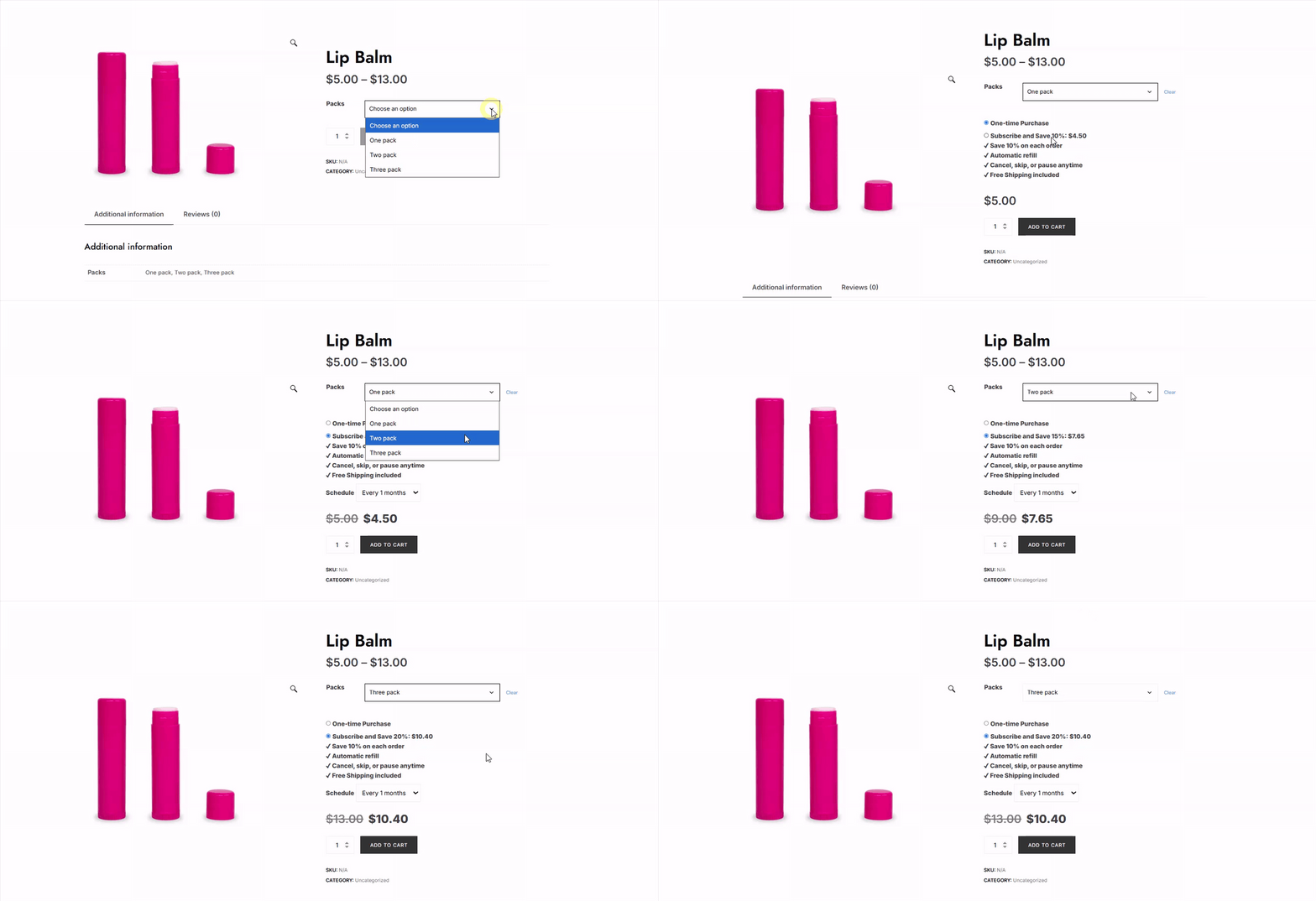
Why it works: A larger pack is a bigger commitment and a bigger up-front sale, so you can afford to pass along real savings while improving average order value and lifetime value. Instead of a small percentage off a single unit, offer bulk tiers and scale the incentive, for example 10% off one box, 15% off two, and 20% off three. What you're doing is giving people who already like your product a reason to commit deeper — and those value-driven buyers are worth far more than discount hunters.
On Shopify, the Subscription Selling Plan applies to all variants of a product, so the smartest lever is how you price each variant. On WooCommerce you have more flexibility, because Autoship prices can be set per variant rather than strictly by the selling plan.
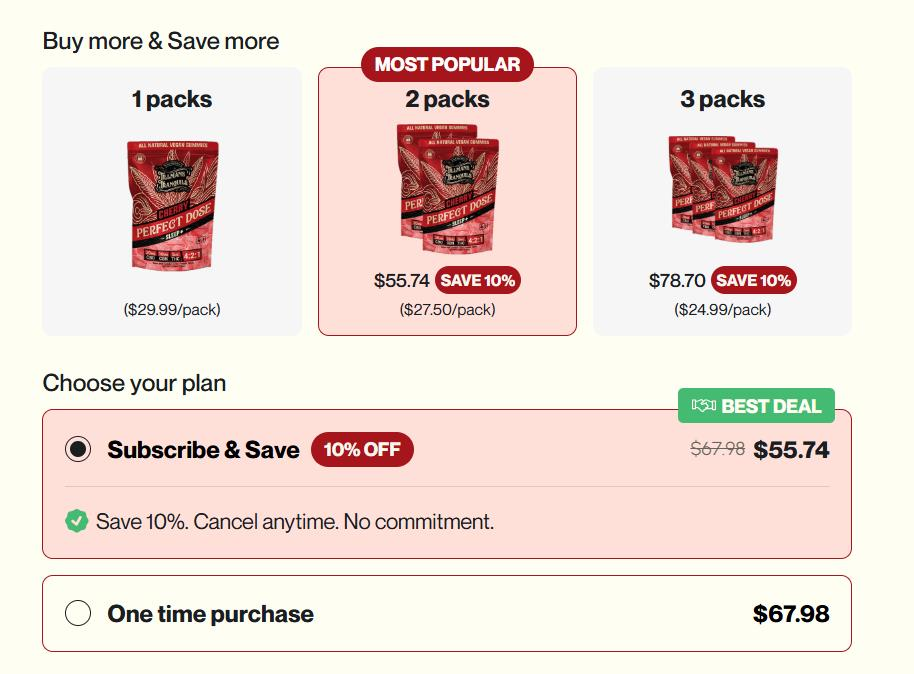
How to set it up — Shopify
- In Shopify > Products, set up your product to offer quantities as variants (for example a 1-pack, 2-pack, and 3-pack of the item).
- Set the variant prices so that the larger quantities carry a better per-unit deal.
- Add a purchase option to offer an Autoship discount on subscription orders.
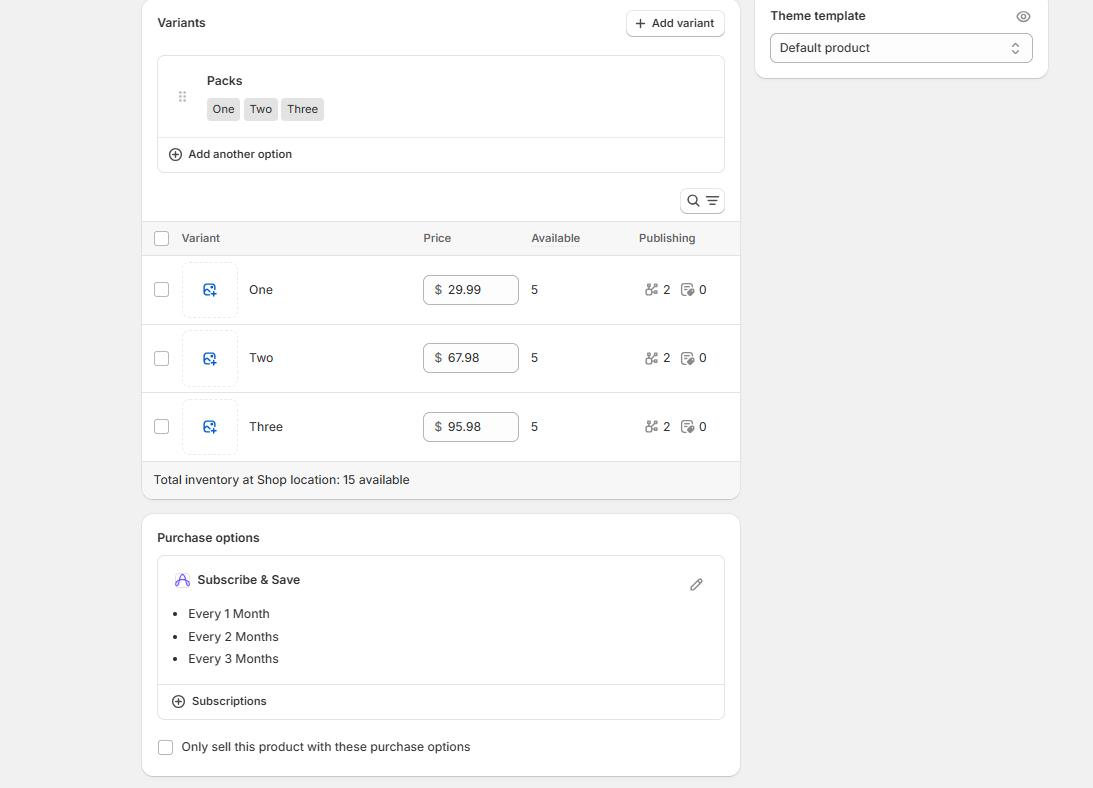
How to set it up — WooCommerce
Because Autoship prices in WooCommerce can be set on variants individually rather than strictly by selling plan, you have two options: apply the same discount across all variants (like the Shopify example above), or offer increasing subscription discounts as the quantity goes up.
Option A — one discount across all products
- Set the regular price of each variant to reflect the bulk savings, as in the example above.
- If you're applying the same subscription discount (e.g. 10% off) across every product on your site, set it in bulk under Autoship Cloud > Settings > Utilities using "Bulk Update Autoship Checkout Price" and/or "Bulk Update Autoship Recurring Price."
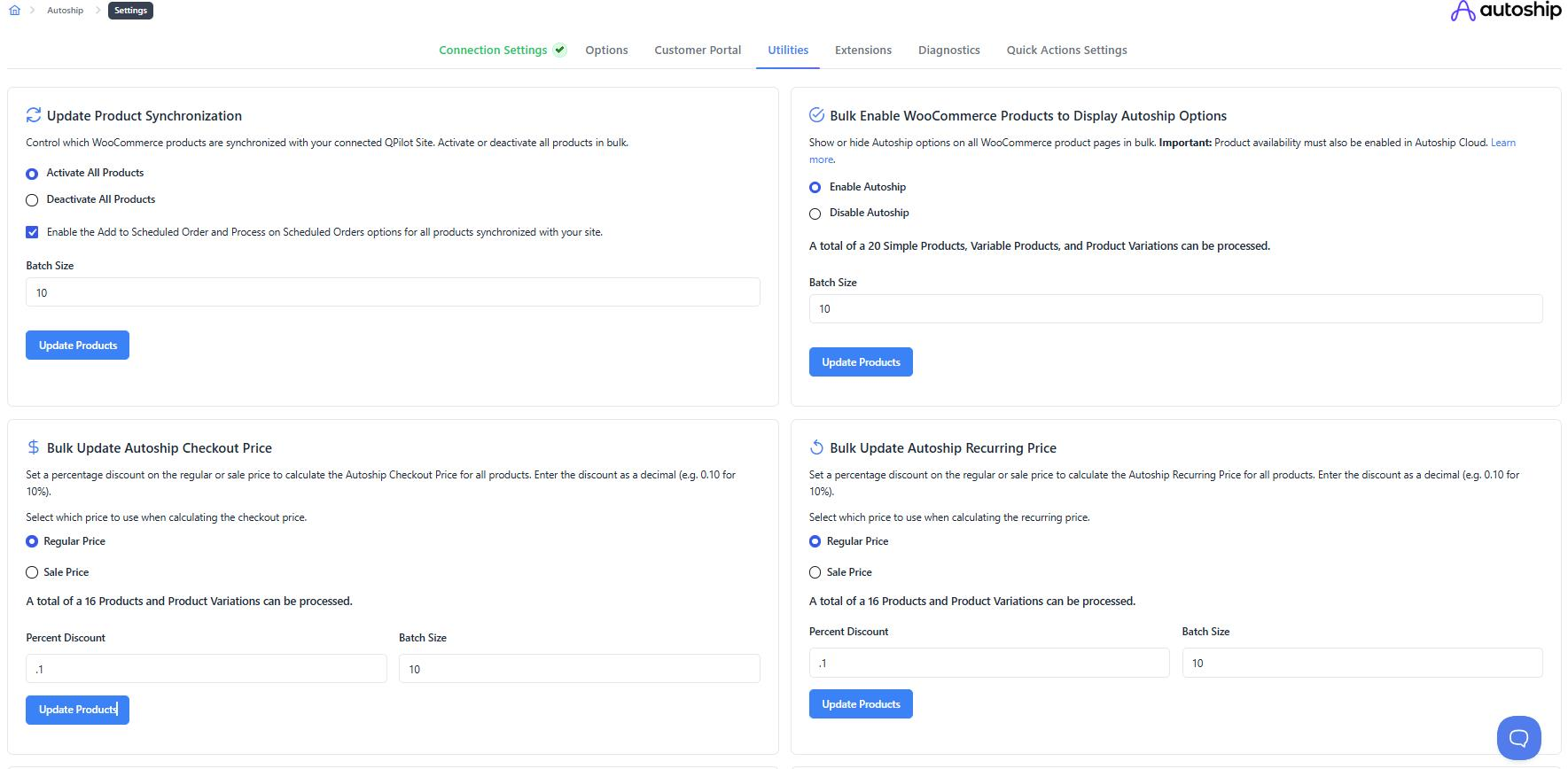
Option B — variation specific discounts
- Go to WP-Admin > Products > Variations.
- Open a variation and set the Autoship Checkout Price and Autoship Recurring Price to your desired discounted price.
- Repeat per variation, applying either the same discount or a larger discount as quantity increases.
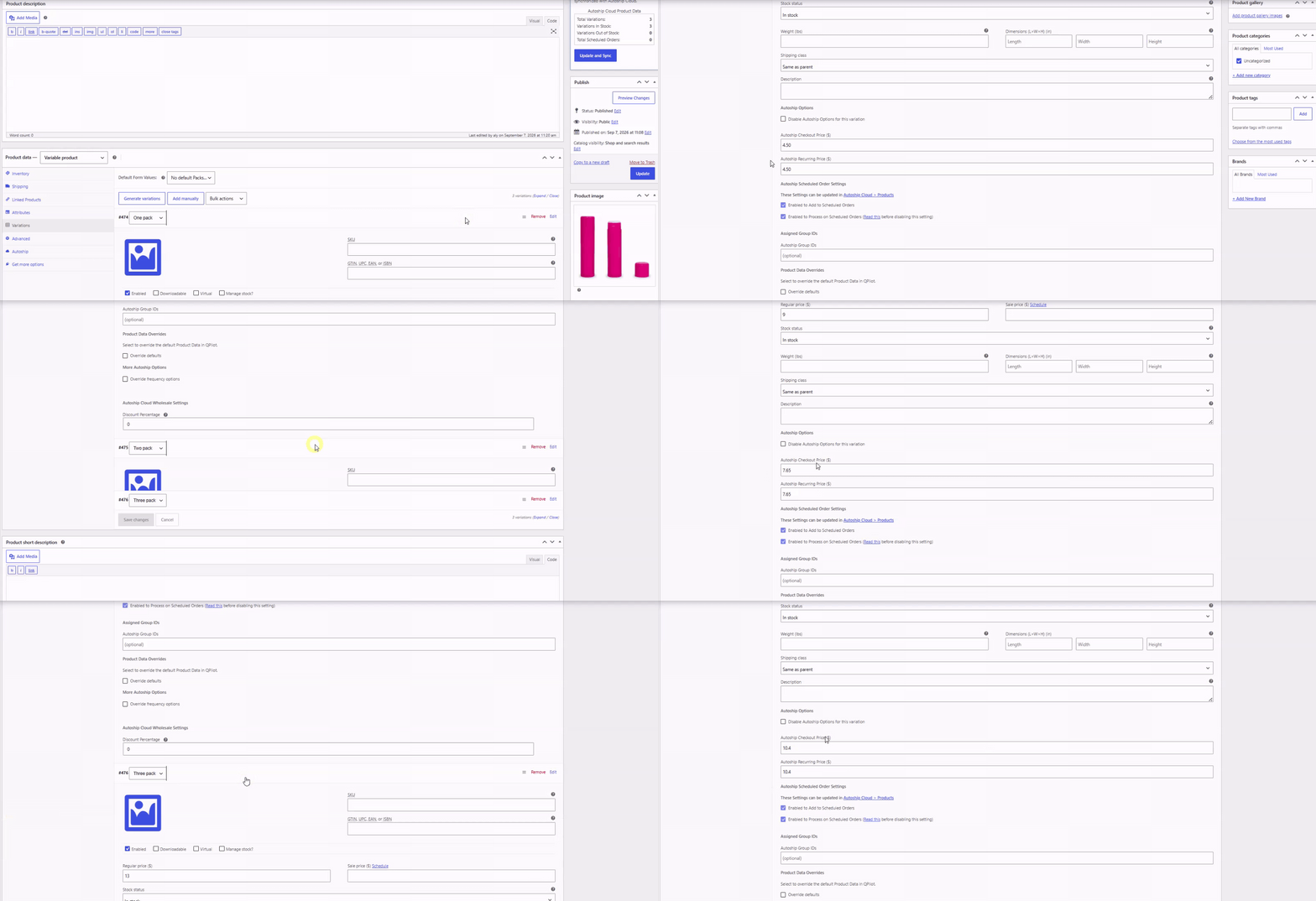
💡 No extra step to display it. Your pricing surfaces automatically on the product page through variant pricing and the Autoship Cloud widget — customers see the deal without any additional messaging setup.
Free Gift with Subscription
Why it works: A gift can make an offer more interesting than simply bumping the discount. It can cost you less than jumping to 20% off, but it makes the offer more compelling without being too elaborate.
For subscriptions, we recommend adding the gift to the customer's first recurring order — so beyond making the initial offer more attractive, it also gives new subscribers a concrete reason to continue past their first purchase.
Unlike your bulk pricing, a gift won't appear on the product page on its own, so there are two parts to this: tell customers about it, then automate the promotion.
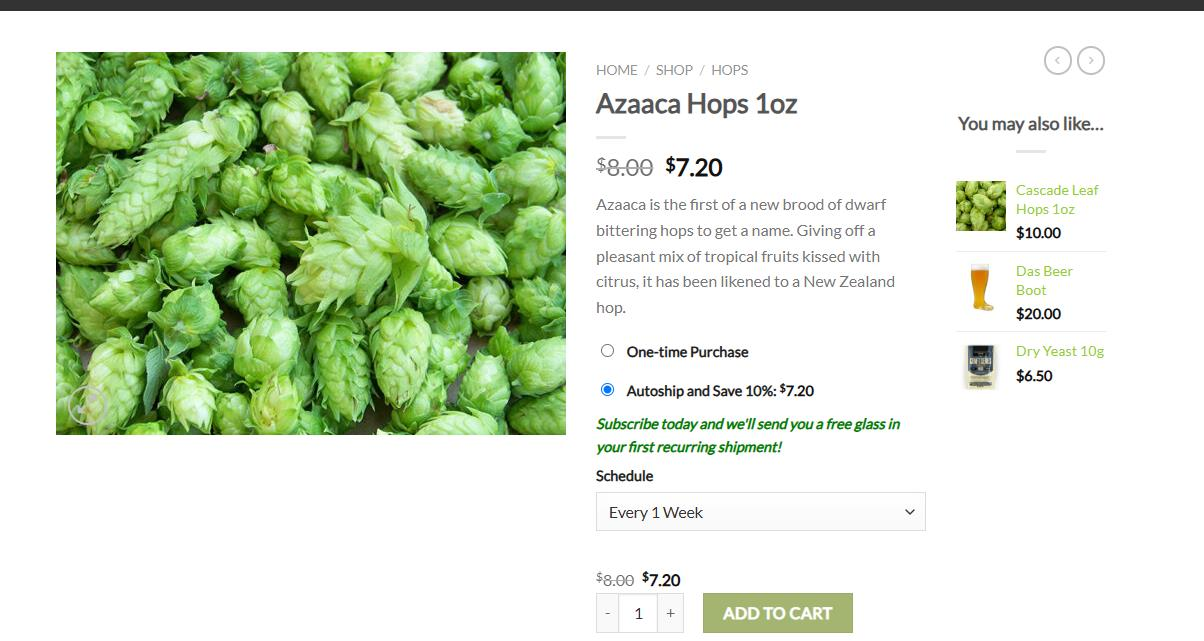
Step 1 — Advertise the gift on your product page
-
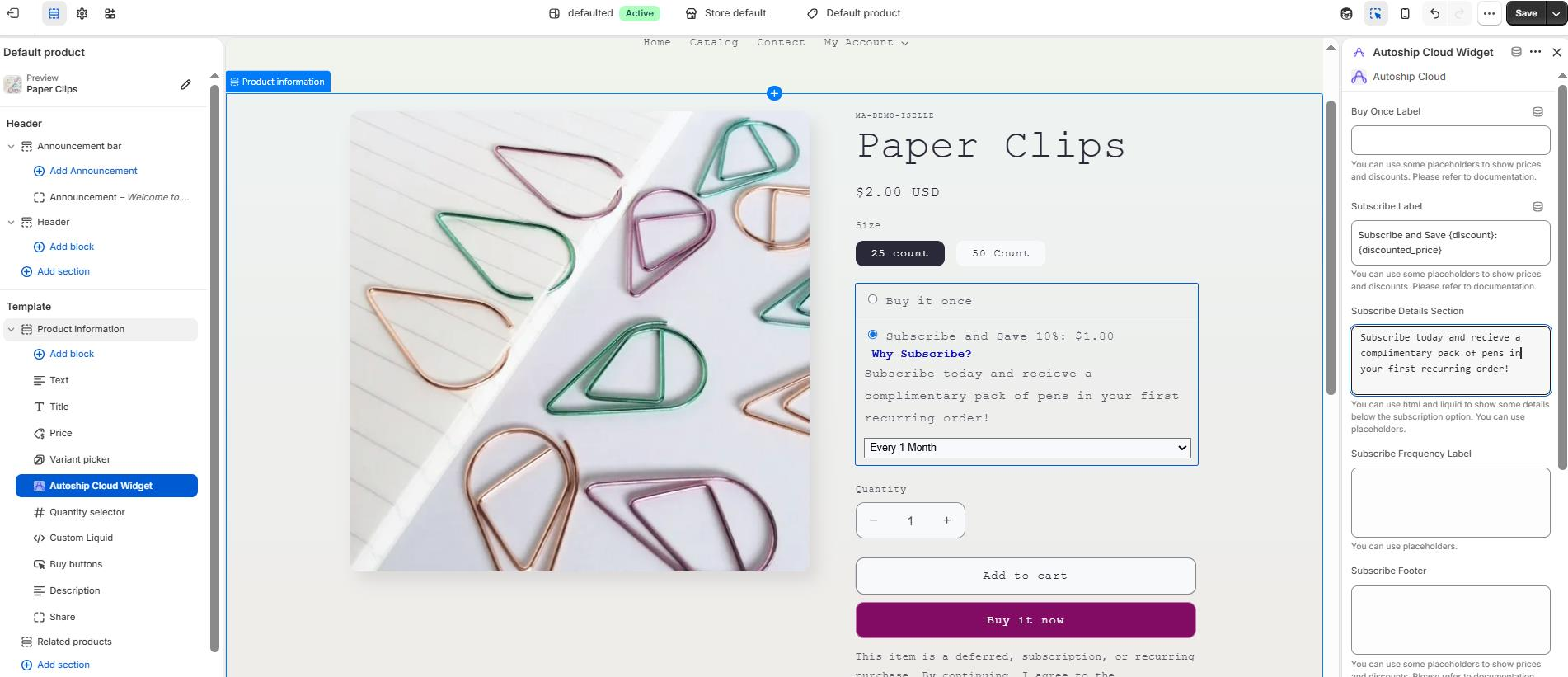
Shopify: Edit your theme, navigate to the Autoship Cloud Widget on your product page, and add your offer copy in the "Subscribe Details Section."
-
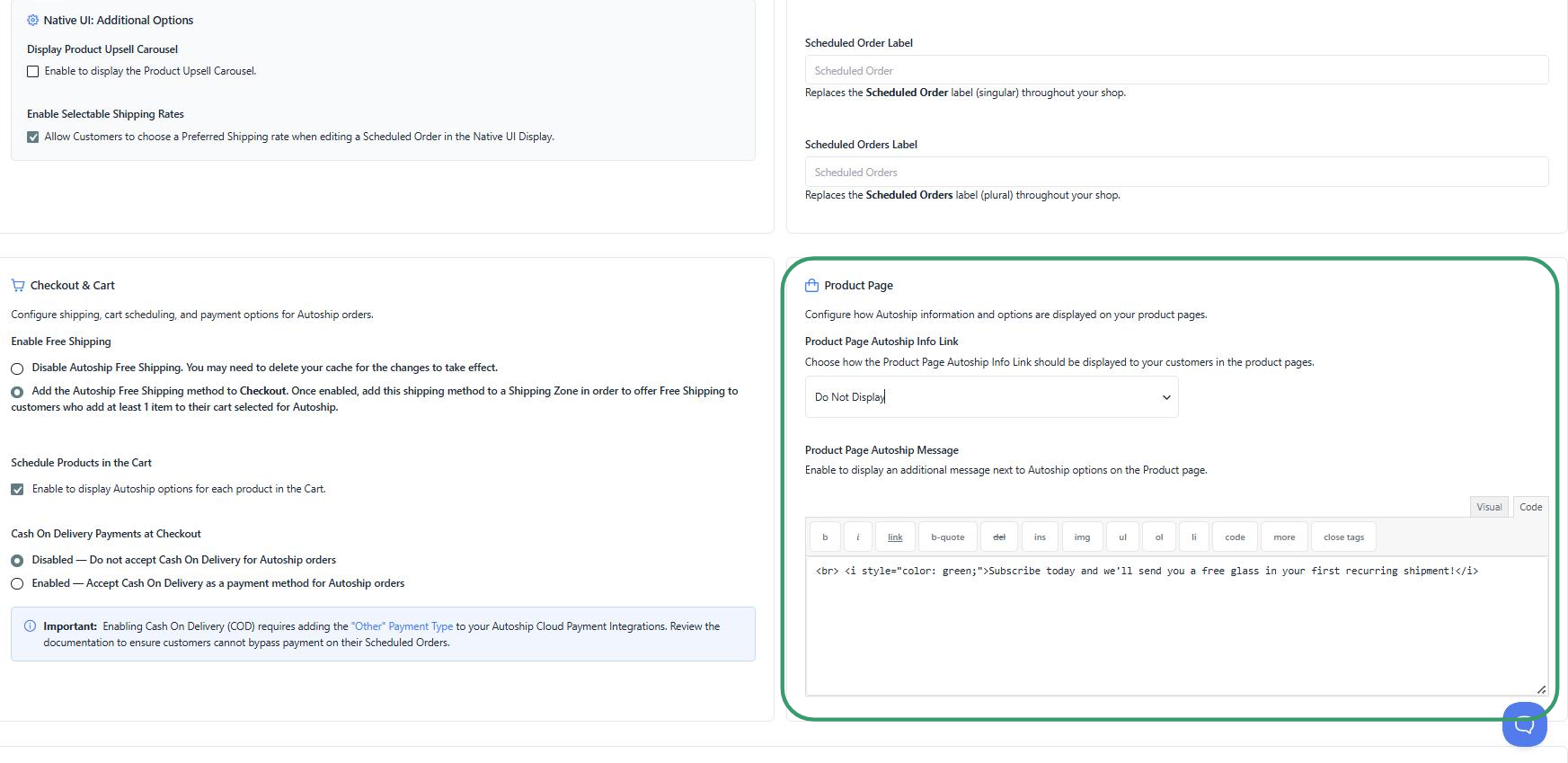
WooCommerce: Go to Autoship Cloud > Settings > Options and use the "Product Page Autoship Message" field to display the offer to customers on the product page.
Step 2 — Automate the gift with MAPs (works on Shopify and WooCommerce)
You'll create two MAPs (Merchant Automated Programs): one to add the gift to the Scheduled Order after it's created, and one to remove it after that first order processes.
In QPilot > MAPs, set up the following:
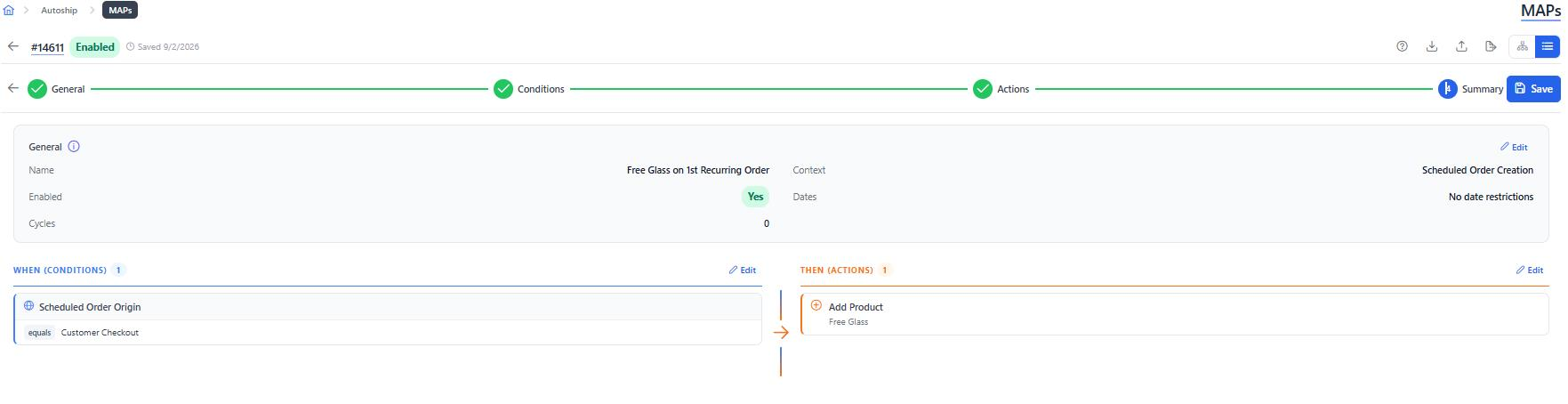
MAP 1 — Add Free Gift
- Context: Scheduled Order Creation
- Condition: Scheduled Order Origin = Customer Checkout
-
Action: Add Product [Free Gift]
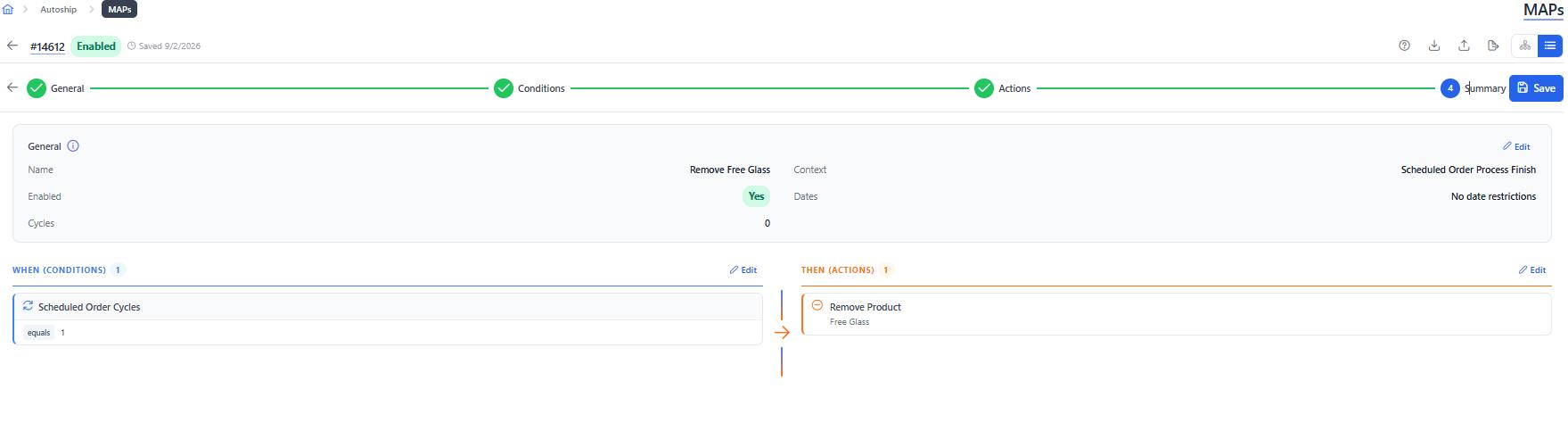
MAP 2 — Remove Free Gift
- Context: Scheduled Order Process Finish
- Condition: Scheduled Order Cycles = 1
-
Action: Remove Product [Free Gift]
⚠️ Be sure to enable both MAPs when you're ready to launch the promotion.
What the Customer Experiences
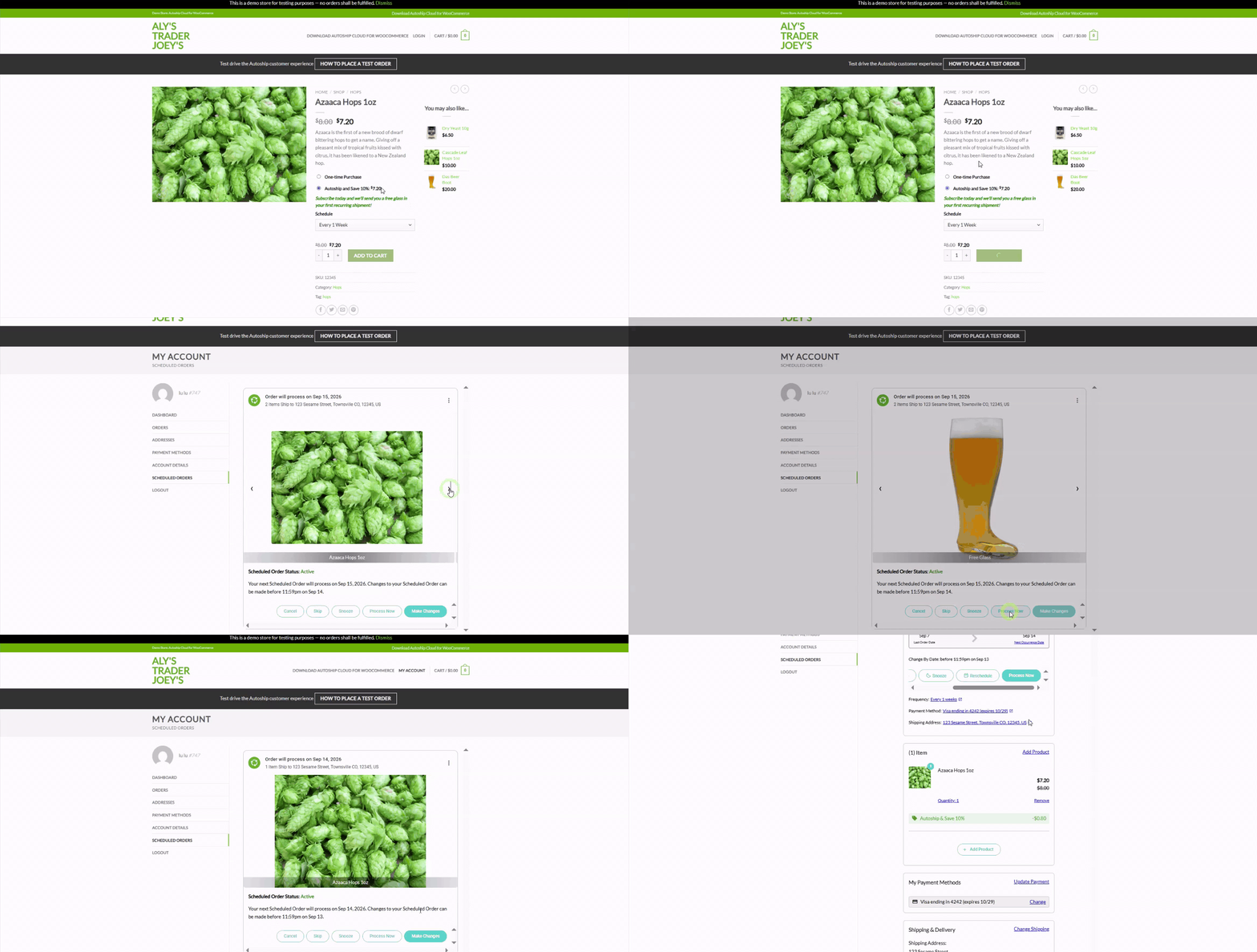
With both MAPs enabled, when a customer checks out with a subscription product the free gift is automatically added to their first recurring order. They can see it in their customer portal, and once that first recurring order processes, the gift is automatically removed from future orders.
Key Takeaway
Start with an offer that's genuinely worth saying yes to. A flat 10% off blends into the noise; bulk tiers or a free gift make subscribing feel like the better deal and the more rewarding choice — and they attract the value-driven buyers who actually stick. Both take just minutes to set up in Autoship Cloud.
For the full framework — including the feedback loops and first-ten-days onboarding that round out Matt's playbook for new brands — see Subscription Prescription — Dose #212.