Snooze a Scheduled Order
A snoozed Scheduled Order is paused until a date you choose, then resumes on its own. Snooze is available in the QPilot Merchant Center at Scheduled Orders.
Snoozing a Scheduled Order
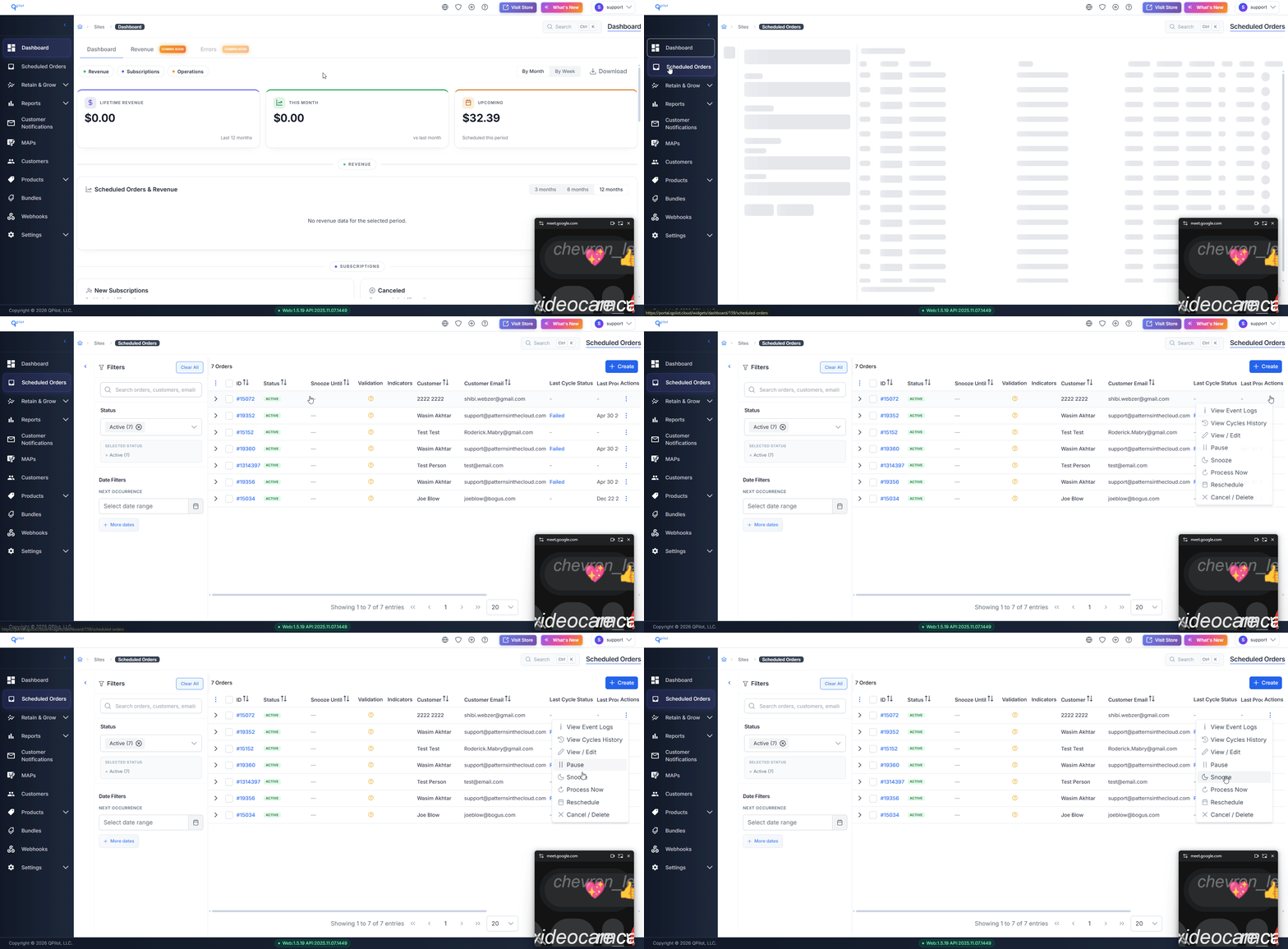
Visit Scheduled Orders and locate the Scheduled Order you want to snooze. Select the actions menu (⋮) at the end of its row and select "Snooze".
Choosing How Long to Snooze
The Snooze dialog displays the Scheduled Order's ID and two ways to set the length of the snooze.
Quick Select
Select "1 Week", "2 Weeks" or "1 Month".
Custom Duration
Enter a number, then select "Days", "Weeks" or "Months".
Either way, the dialog displays the date the Scheduled Order will resume. Check this date before continuing.
Select "Snooze Order" to apply it.


Viewing Snoozed Scheduled Orders
A snoozed Scheduled Order displays a "Snoozed" status, and its resume date appears in the "Snooze Until" column.
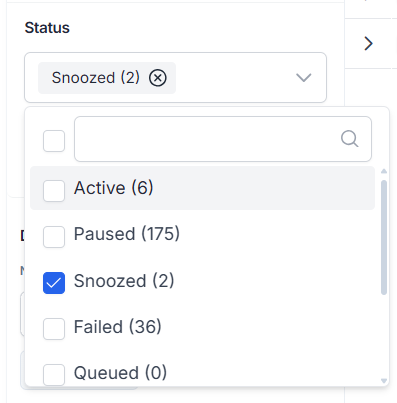
To list every snoozed Scheduled Order, select "Snoozed" in the Status filter.
Resuming a Snoozed Scheduled Order Early
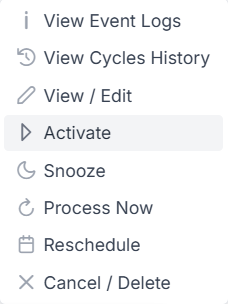
Select the actions menu (⋮) for the snoozed Scheduled Order and select "Activate". Select "Yes, Activate it" to confirm.
The Scheduled Order returns to an Active status and processes on its next occurrence date.