
Using the Products Report Alt
The Products Report finds scheduled orders by product. Use it to answer two questions:
- Who receives this product, and where is it shipping?
- How much of this product do I need between two dates?
Opening the Products Report
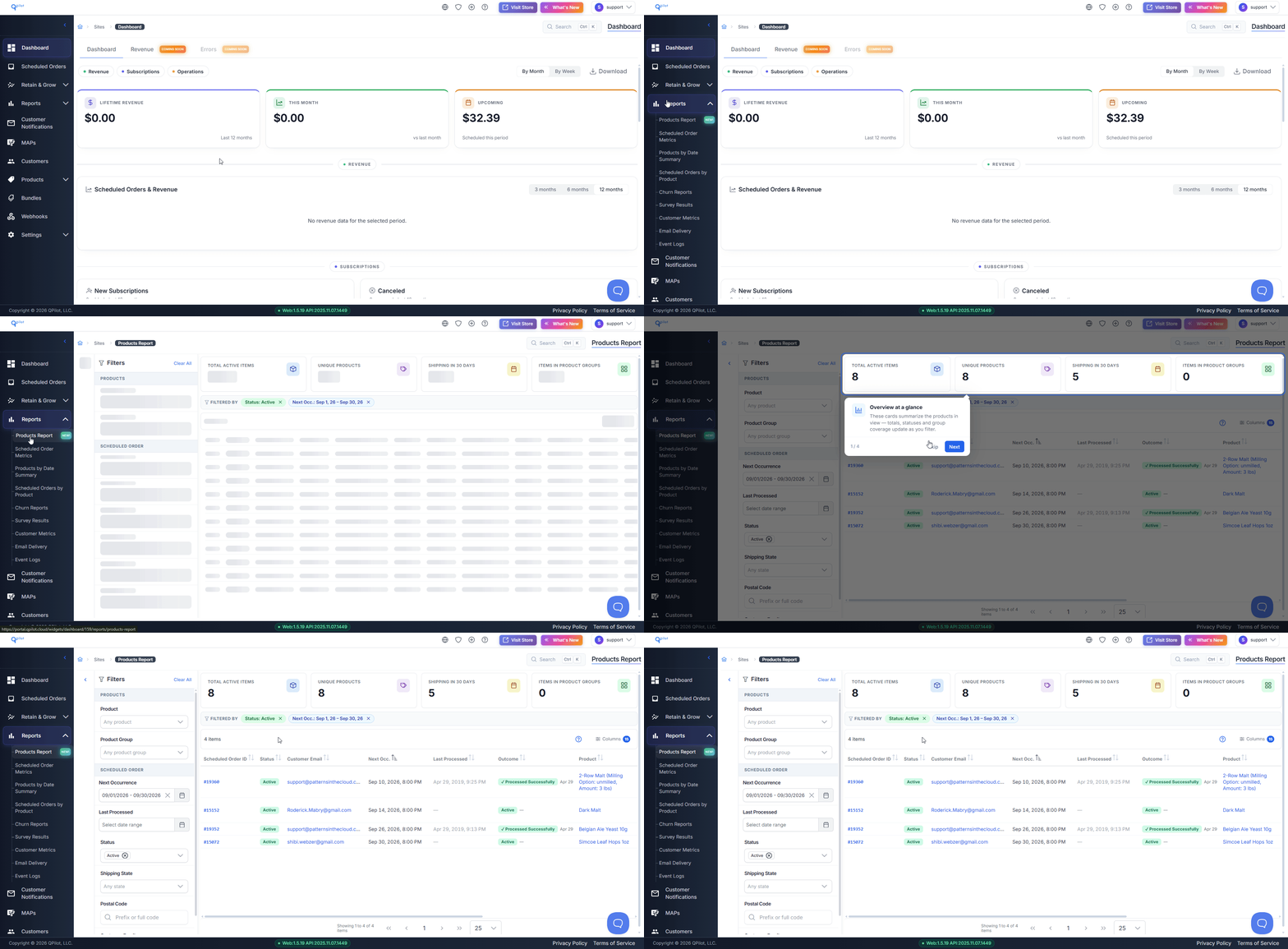
In the QPilot Merchant Center, visit Reports > Products Report.
In this screen capture, a merchant opens the Products Report:
Finding Who Receives a Product and Where It Is Shipping
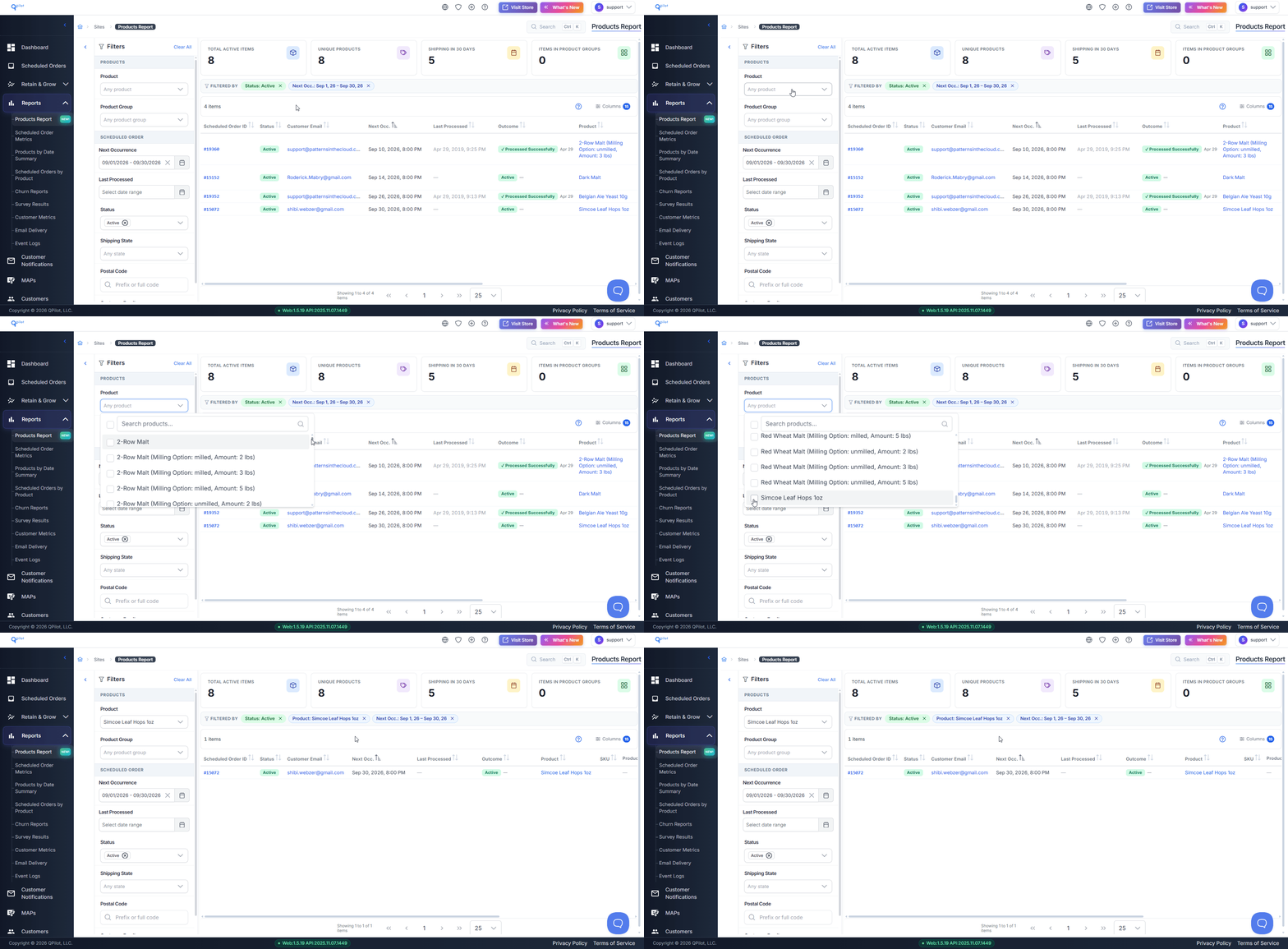
Open the Product dropdown and select one or more products.
Leave the Next Occurrence range empty to return every scheduled order containing that product, regardless of when it processes next.
Each row is one scheduled order. Read across the row for the subscriber's Customer Email, State and Postal.
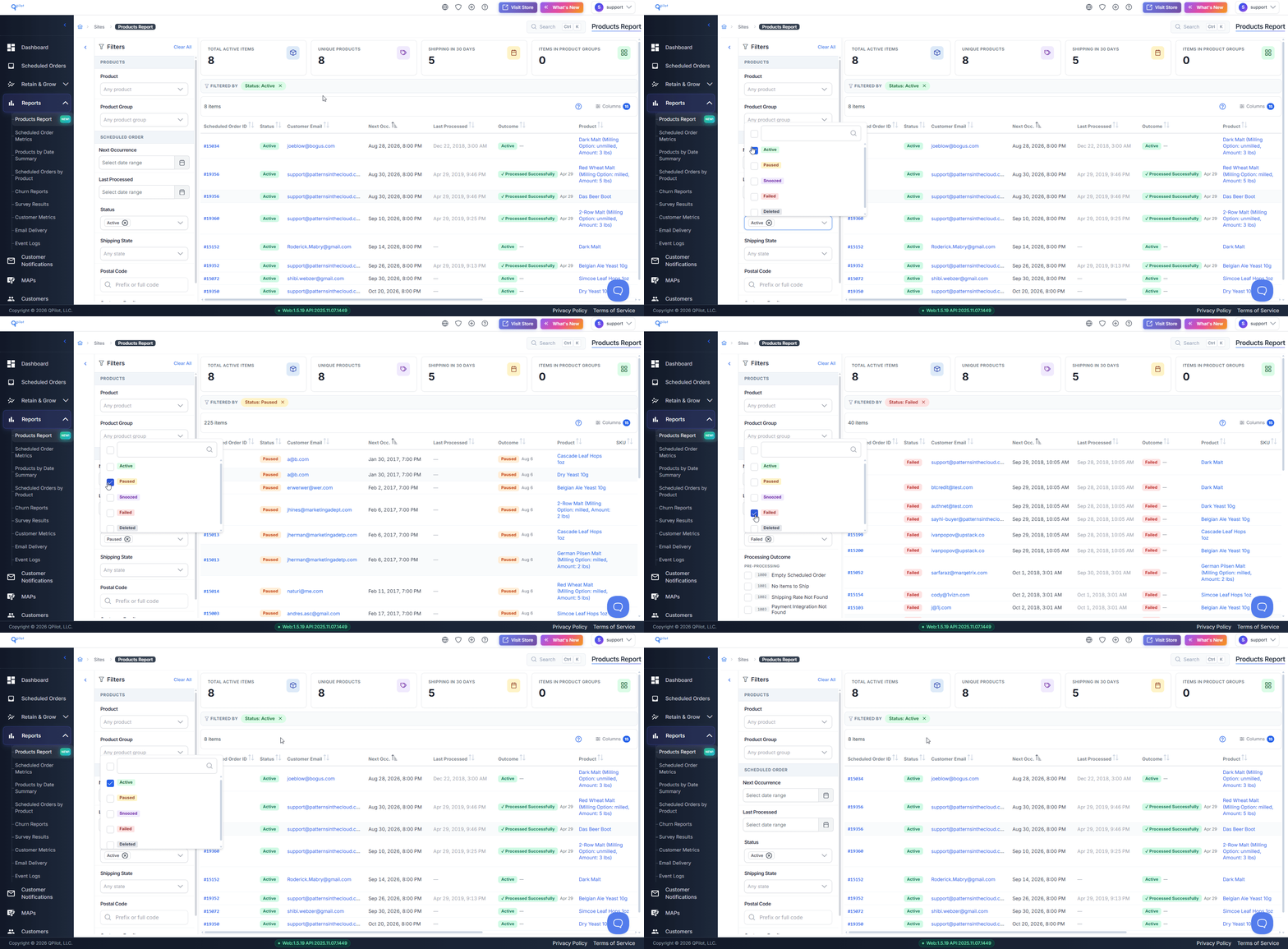
Use the status filter to choose which scheduled orders are included: Active, Paused, Snoozed, Failed or Deleted. Select more than one status to include them all.
In this screen capture, a merchant selects a product and reviews the results:
Finding How Much of a Product Is Needed
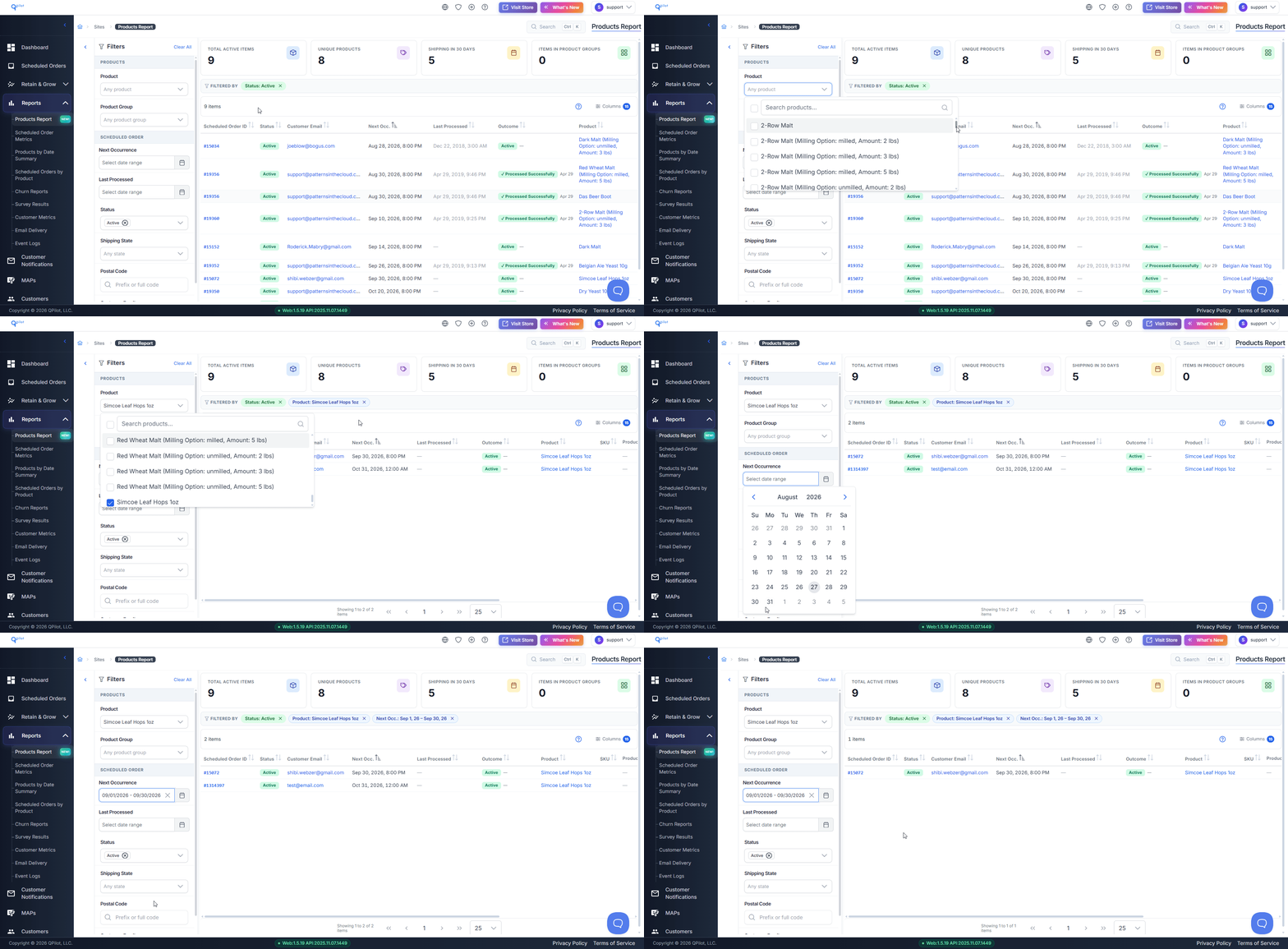
- Select the product in the Product dropdown
- Set a Next Occurrence range covering the dates you are planning for
- Set the status filter to Active
- Total the Qty column
Important: Each scheduled order is counted once. A subscription that recurs more than once inside your Next Occurrence range is still counted a single time, so this total is a minimum rather than an exact forecast. Shorter date ranges produce more accurate totals.
The Products Report cannot currently be exported. To keep a copy of your results, capture the screen.
In this screen capture, a merchant reviews the quantity required for a single product over a date range:
Finding Scheduled Orders That Failed
Add Failed to the status filter. The Outcome column displays why each scheduled order failed.
Important: Failed scheduled orders usually have a Next Occurrence date in the past. If you filter by Failed and see no results, clear the Next Occurrence range, or use Last Processed instead to search by when the failure happened.
Outcomes you are most likely to act on:
- 3004 Inventory Unavailable — the product was out of stock when the order processed
- 2000 Payment Failed — the subscriber's payment was declined
- 1004 Payment Method Missing — the subscriber has no payment method saved
- 1002 Shipping Rate Not Found — no shipping rate matched the scheduled order
- 1001 No Items to Ship — the scheduled order has no items
Important: The Outcome column describes scheduled orders that have already failed. It does not predict scheduled orders that will fail.
In this screen capture, a merchant sets a Next Occurrence range and adds statuses to the filter:
What Each Column Shows
- Scheduled Order ID — the scheduled order containing this product
- Status — Active, Paused, Snoozed, Failed or Deleted
- Customer Email — the subscriber, for contacting them directly
- Next Occ. — when the scheduled order processes next
- Last Processed — when it last attempted to process
- Outcome — why it failed, if it did
- Product, SKU, Product Group, Variation — what was ordered
- Qty — how many of this product are on the scheduled order
- Price and Sale Price — the price paid, including any subscription discount
- State and Postal — where the product is shipping
When to Use This Report
The Products Report is most often used by the person responsible for supporting subscribers and managing product availability. Two situations come up repeatedly:
- A product can no longer be sold to a state or region. Select the product, leave the date range empty, and read the State and Postal columns to find every affected subscriber and their status.
- A product will be out of stock. Select the product, set a Next Occurrence range covering the shortage, and use the Customer Email column to contact the subscribers who are due to receive it.