
Using the Products Report
The Products Report finds scheduled orders by product. Use it to answer two questions:
- Which subscribers receive a specific product, and where is it shipping?
- How much of a product is needed for scheduled orders in a date range?
The report is organized by product first, then by the scheduled orders containing that product.
Opening the Products Report
In the QPilot Merchant Center, visit Reports > Products Report.
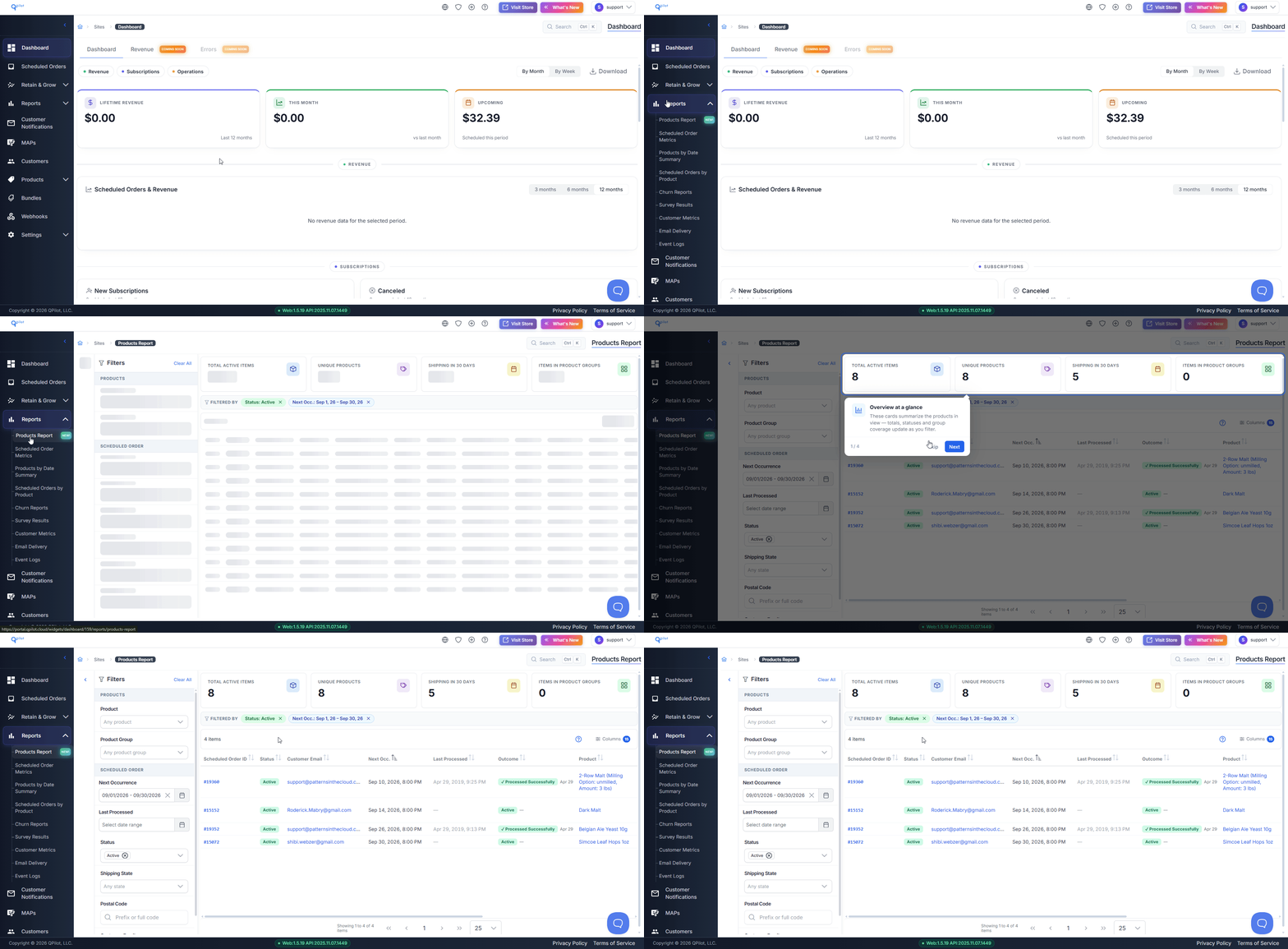
In this screen capture, a merchant opens the Products Report:
Finding Which Subscribers Receive a Product
Open the Product dropdown and select one or more products. Results are displayed below.
Each row is a scheduled order containing that product, and includes:
- Scheduled Order ID — the scheduled order containing this product
- Status — Active, Paused, Snoozed, Failed or Deleted
- Customer Email — the subscriber, for contacting them directly
- Next Occ. and Last Processed — when it processes next, and when it last tried
- Outcome — why it failed, if it did
- Product, SKU, Product Group and Variation — the product and how it is identified
- Qty, Price and Sale Price — how many, and the price paid including any subscription discount
- State and Postal — the shipping destination
State and Postal are included because scheduled orders ship to subscribers, so the destination is usually relevant. Use them when a product can no longer be sold to a particular state or region.
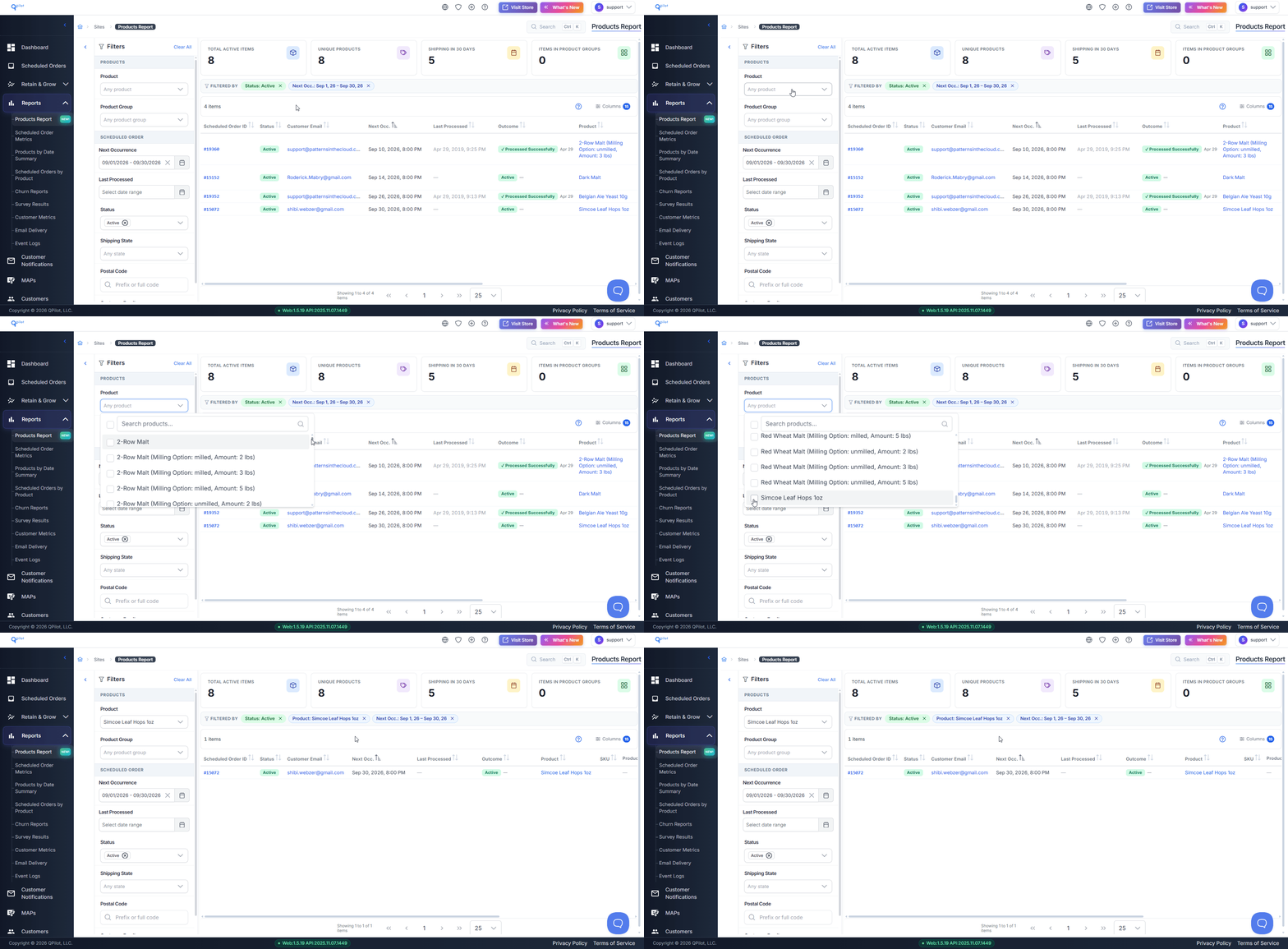
In this screen capture, a merchant selects a product and reviews the results:
Filtering by Status
Use the status filter to include scheduled orders by their status: Active, Paused, Snoozed, Failed or Deleted.
The Outcome column displays wheter a scheduled order is active, paused or failed. If failed, there is an error code that you can filter by.
Important: The Outcome column describes scheduled orders that have already failed. It does not predict scheduled orders that will fail. Failed Scheduled orders often have Next Occurence date in the past be sure to check the Next Occurrence range.
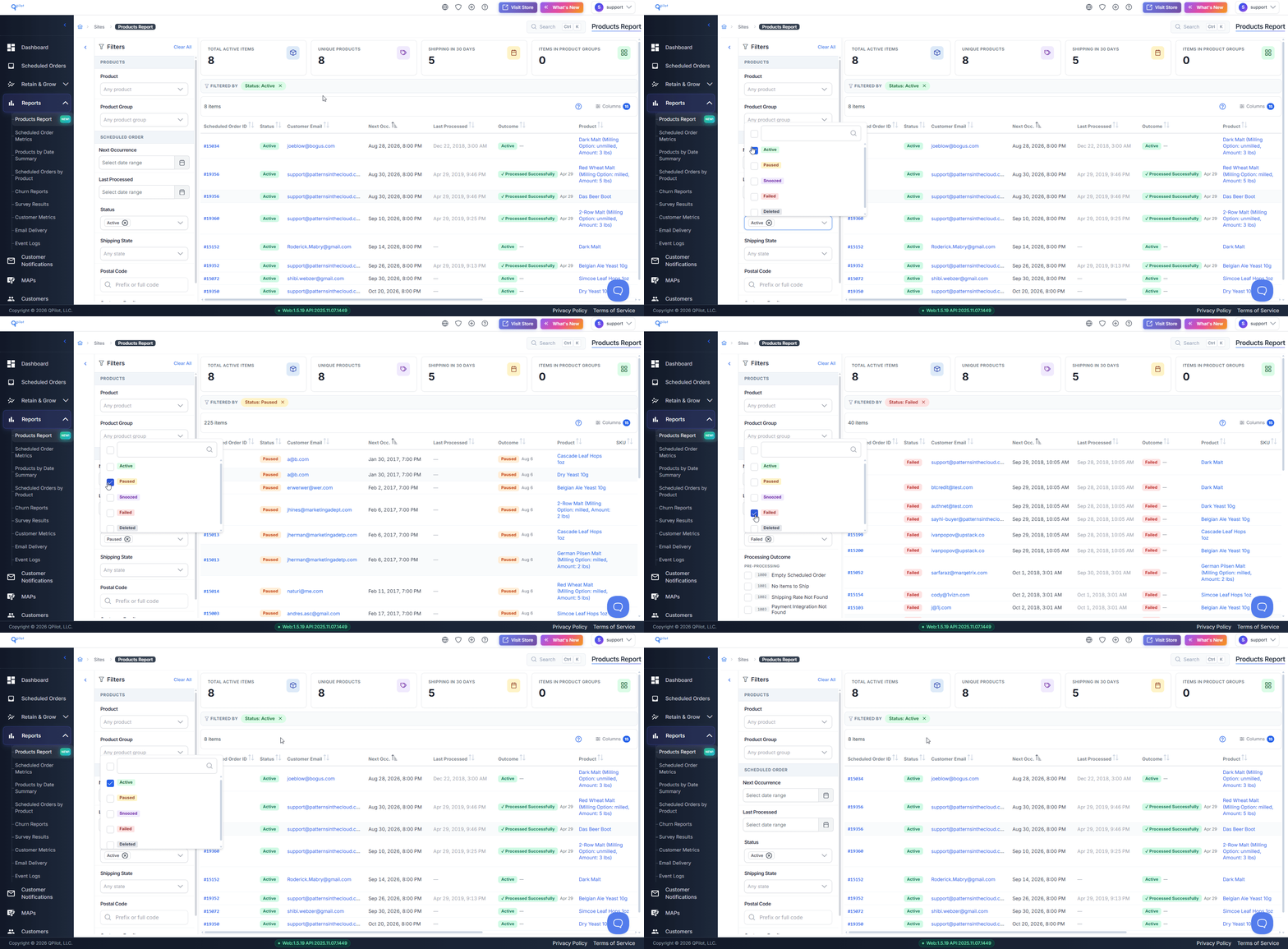
In this screen capture, a merchant sets a Next Occurrence range and adds statuses to the filter:
Finding How Much of a Product Is Needed
To find how much of a product is required for upcoming scheduled orders:
- select the product in the Product dropdown
- set a Next Occurrence range covering the dates you are planning for
- set the status filter to Active
- total the Qty column
Important: Each scheduled order is counted once. A subscription that recurs more than once inside your Next Occurrence range is still counted a single time, so this total is a minimum rather than an exact forecast. Shorter date ranges produce more accurate totals.
The Products Report cannot currently be exported. To keep a copy of your results, capture the screen.
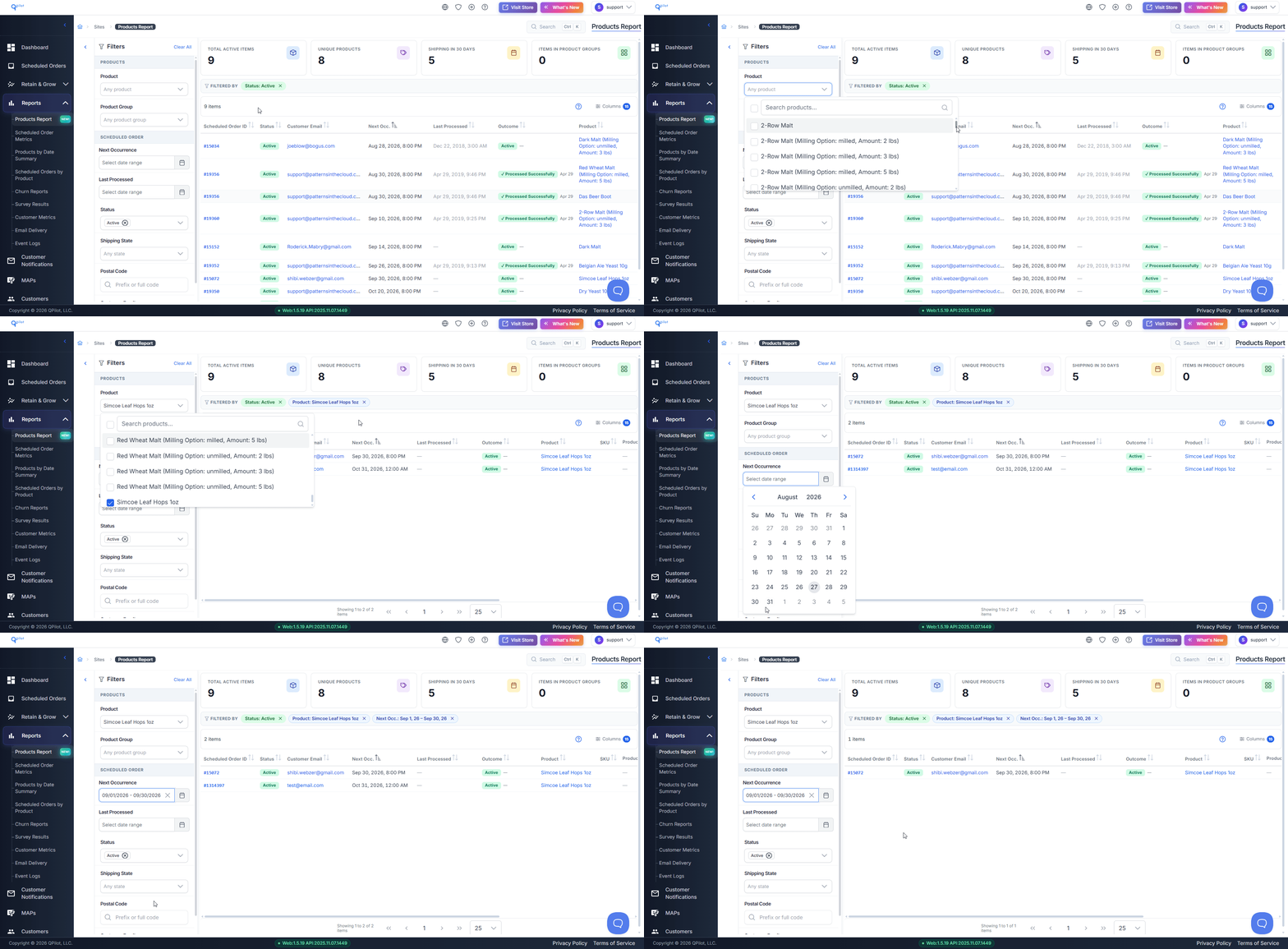
In this screen capture, a merchant reviews the quantity required for a single product over a date range:
Exporting
The Products Report cannot currently be exported.