
Cancellation Surveys - Creating Retention Workflows in Autoship
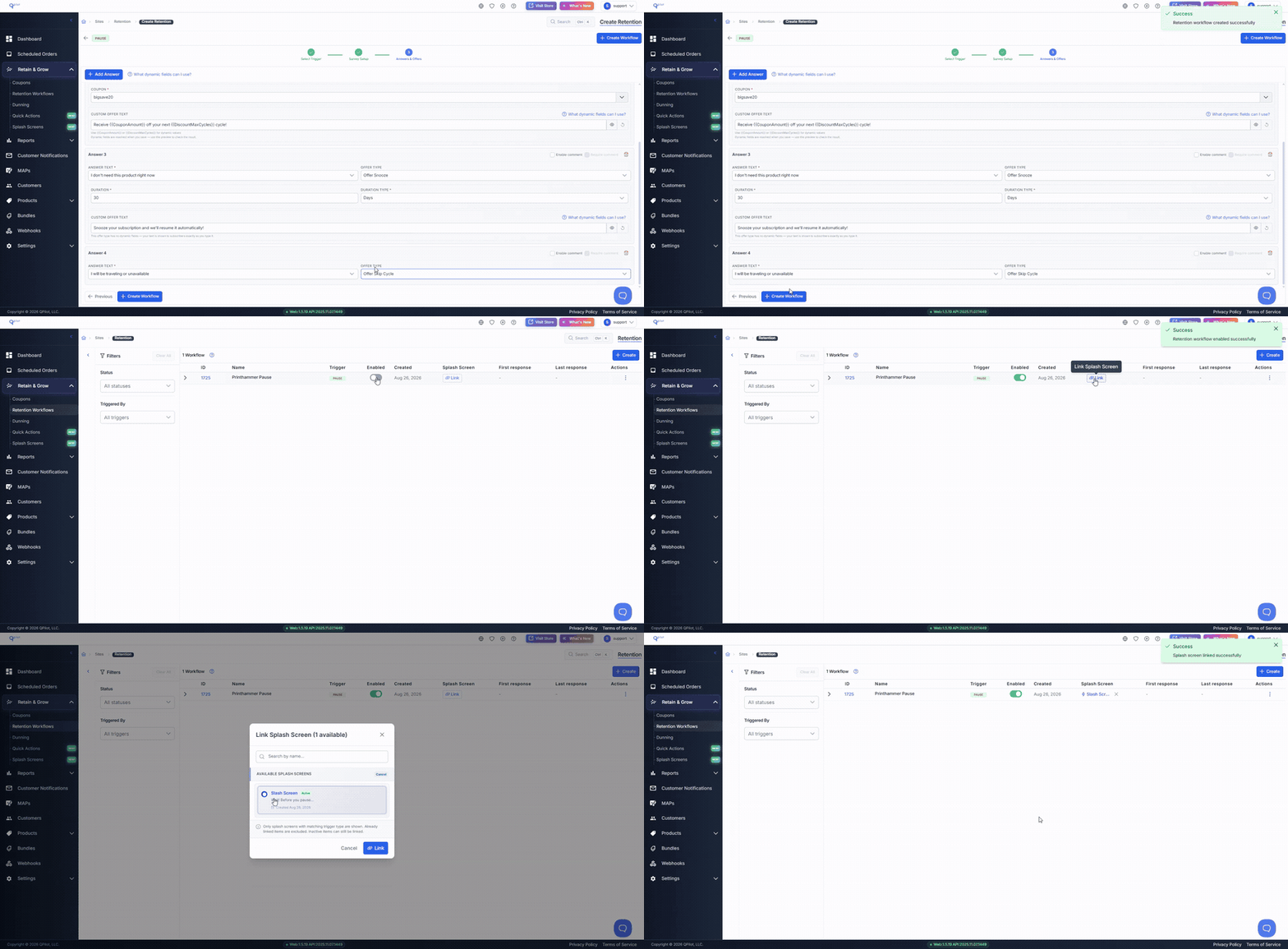
Retention Workflows are created in the QPilot Merchant Center or the Autoship App at Retain & Grow > Retention Workflows.
Starting a New Retention Workflow
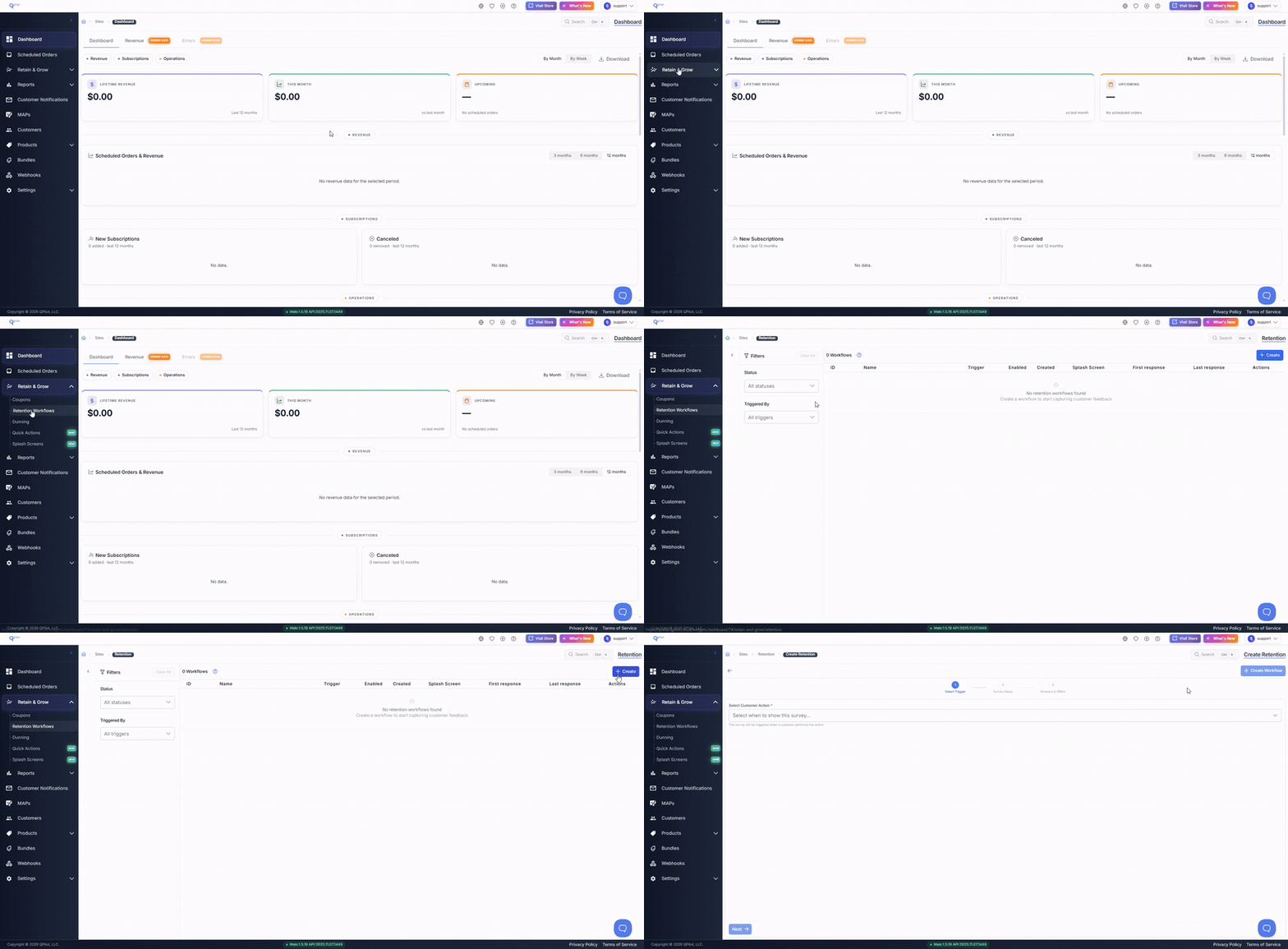
To create a new Retention Workflow, visit Retain & Grow > Retention Workflows and select the "+ Create" button in the upper right.
In this screen capture, a merchant opens the Retention Workflows view and selects "+ Create":
Selecting the Customer Action
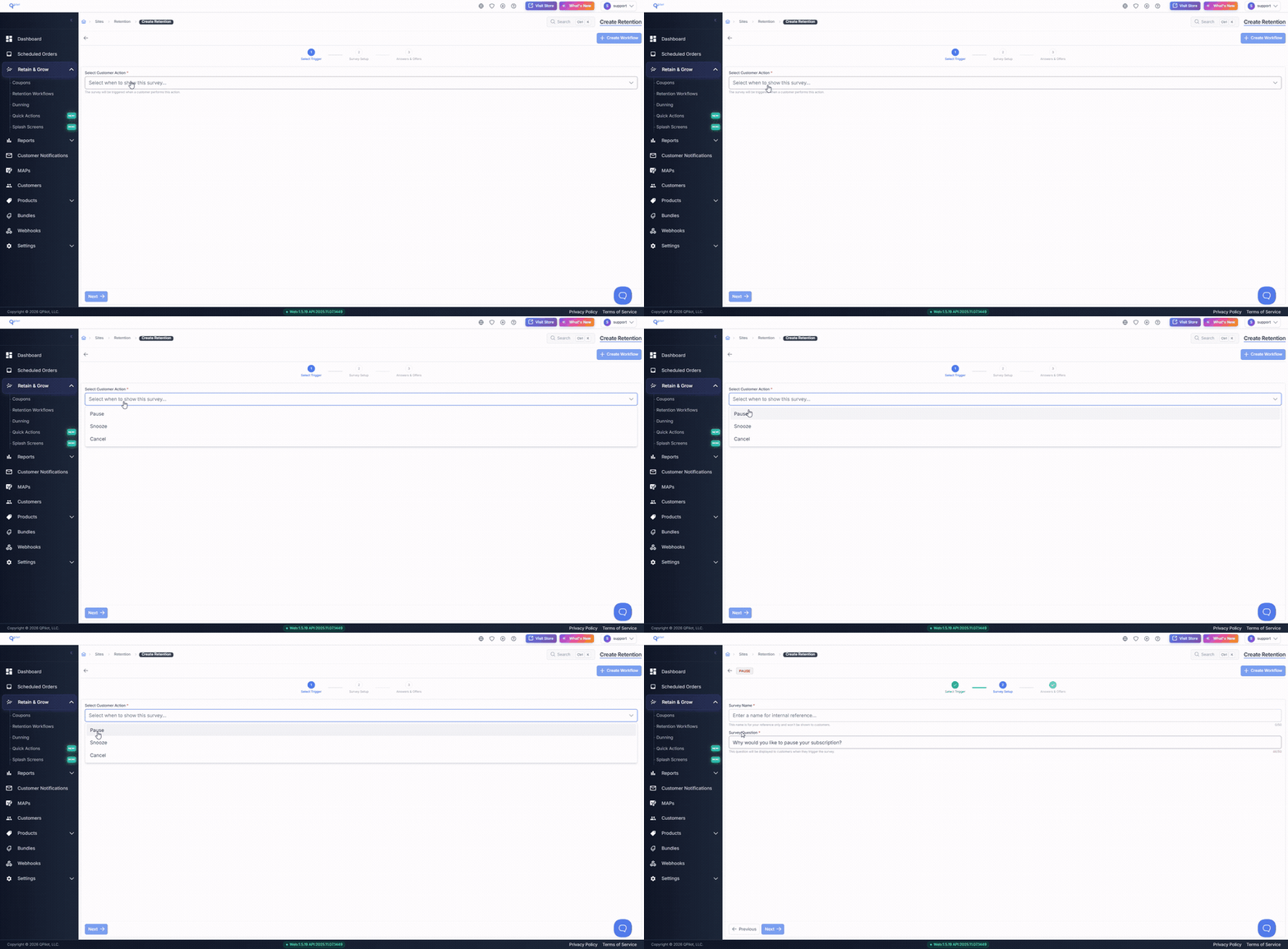
The Customer Action is the action that will display your survey to a subscriber. Open the "Select Customer Action" dropdown and choose one of the following:
- Pause — the subscriber stops their scheduled orders indefinitely
- Snooze — the subscriber delays their next order for a set period
- Cancel — the subscriber ends their subscription
Then select "Next".
In this screen capture, a merchant selects the "Pause" customer action and continues to Survey Setup:
Setting Up the Survey
Survey Name
Enter a Survey Name for your internal reference. This name is not displayed to subscribers.
Survey Question
A Survey Question is provided for you based on the Customer Action you selected. You can edit this question, which is displayed to subscribers when they trigger the survey.
Select "Next" to continue.
Adding Answers
Four answers are provided for you. You can:
- edit the text of any answer in the "Answer Text" field
- remove an answer using the delete icon
- add additional answers using the "+ Add Answer" button
- select "Enable comment" to allow subscribers to enter their own reason
Adding an Offer to an Answer
Each answer can include its own offer. Open the "Offer Type" dropdown for an answer and select one of the following:
- Offer Free Product — adds a free product to the subscriber's next order
- Offer Discount — applies a coupon
- Offer Snooze — pauses the subscription for a set period
- No Offer — the answer is recorded and no offer is displayed
- Offer Change Frequency — allows the subscriber to order less often
- Offer Skip Cycle — skips the subscriber's next order
Offer Discount
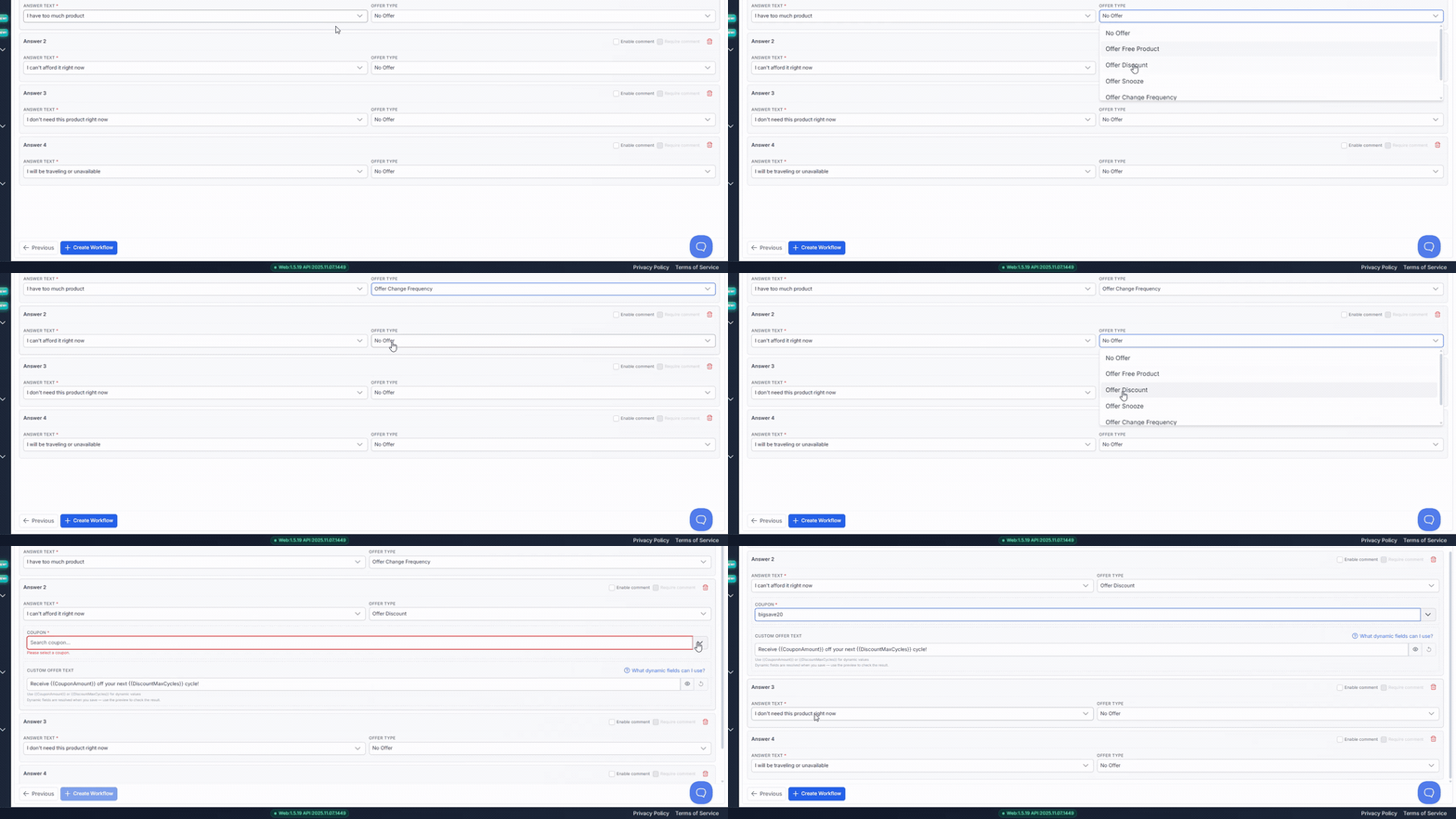
Selecting "Offer Discount" displays a required "Coupon" field. Select a coupon from the dropdown. Coupons cannot be created here — if your coupon is not listed, create it in Retain & Grow > Coupons first.
Important: The Retention Workflow cannot be created until a coupon has been selected for every answer using "Offer Discount".
In this screen capture, a merchant selects "Offer Discount" for an answer and then selects a coupon:
Offer Snooze
Selecting "Offer Snooze" displays required "Duration" and "Duration Type" fields. Enter a Duration of 1 or more and select a Duration Type of Days, Weekly or Monthly.
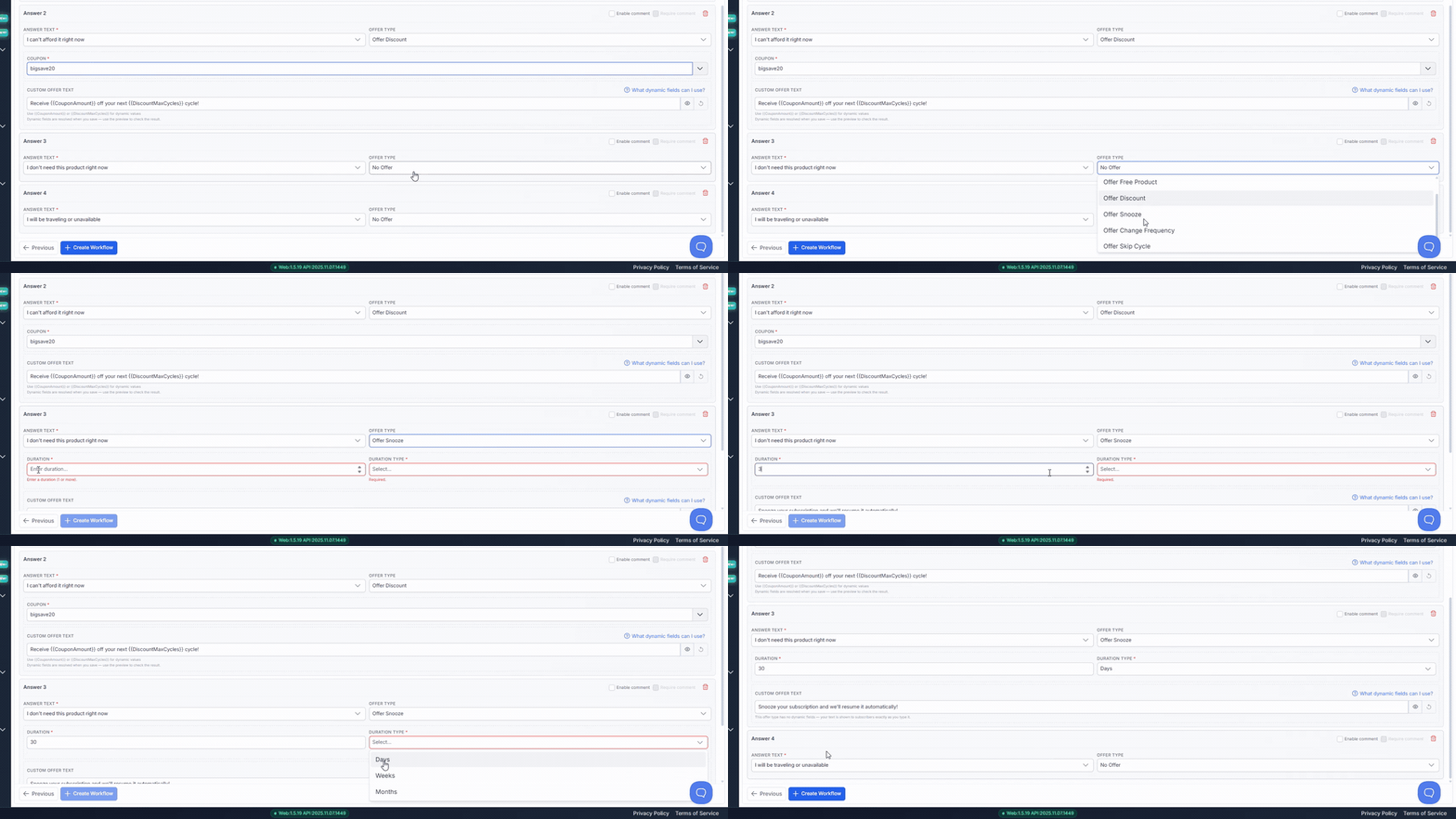
In this screen capture, a merchant selects "Offer Snooze" for an answer and enters a duration:
Creating and Enabling the Retention Workflow
Select "Create Workflow" to save your Retention Workflow. The new workflow is displayed in the Retention Workflows view.
New Retention Workflows are created disabled
Select the "Enabled" toggle for your workflow to display it to subscribers. Until you do, no subscriber will see the survey.
Linking a Splash Screen
A Splash Screen can be displayed to a subscriber before your survey. To link one, select "Link" in the "Splash Screen" column for your workflow, choose a splash screen and select "Link".
Only Splash Screens using the same Customer Action as your Retention Workflow are available to link. If no splash screens are listed, create a Splash Screen using that Customer Action first.
In this screen capture, a merchant creates a Retention Workflow, enables it, and links a Splash Screen: